Financial Ratios
Financial ratios are used to evaluate an applicant’s financial position and support consistent credit assessment. The Financial Ratios section allows users to configure threshold criteria for different ratios based on the applicant type and applicable criteria. These thresholds can then be used during credit evaluation to assess whether an applicant meets the defined financial requirements.
Ratio Configurations
Coming Soon
Ratio Threshold
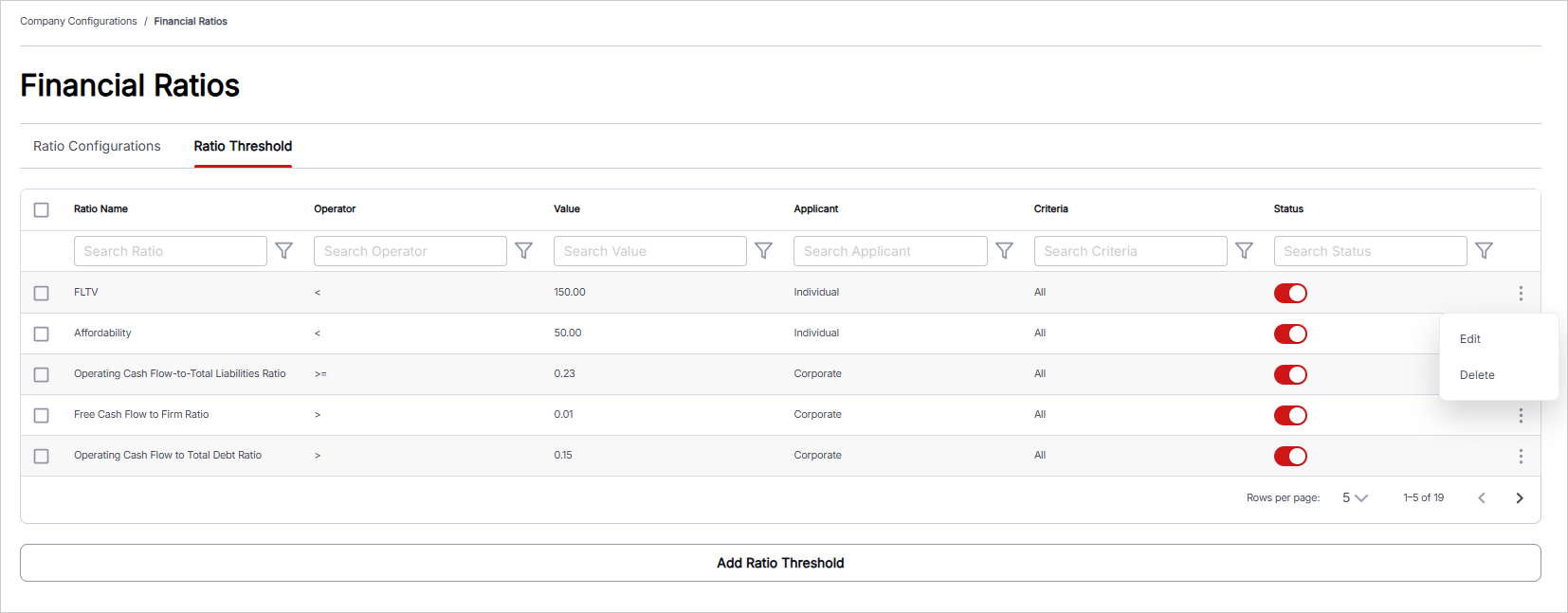
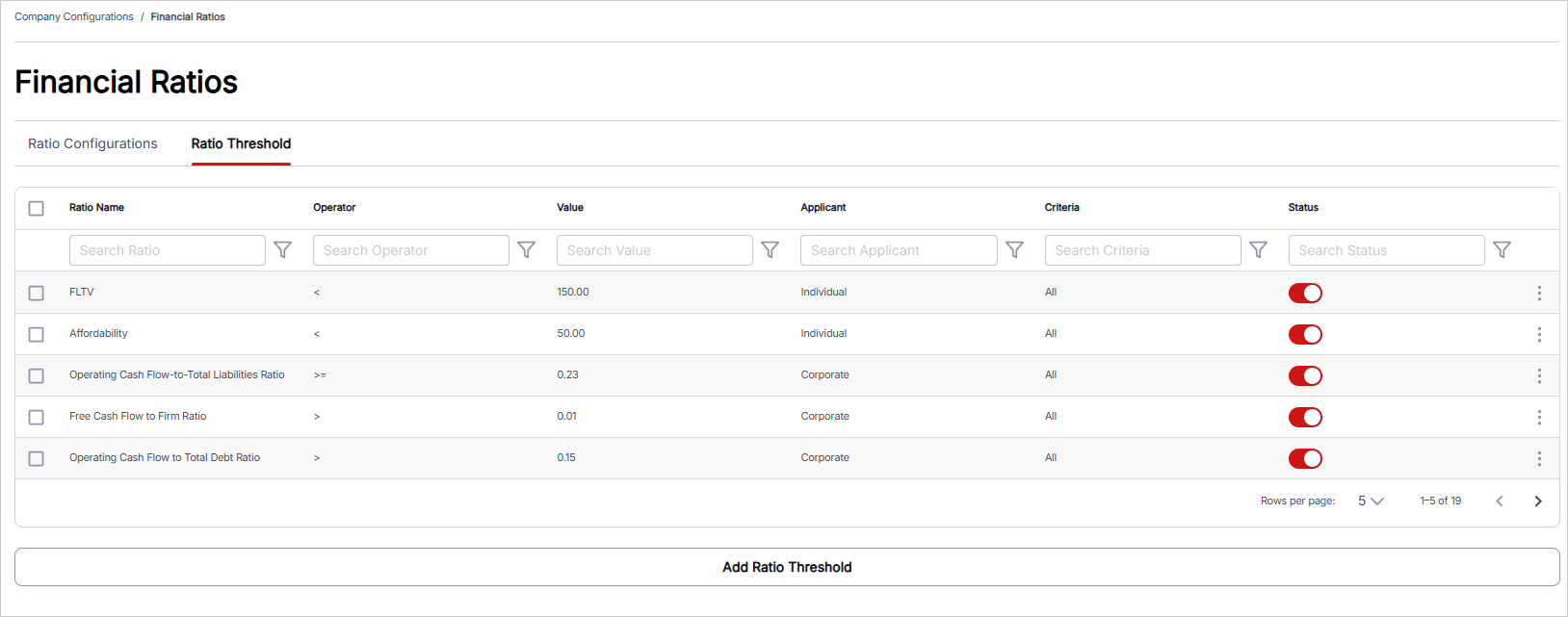
The Ratio Threshold tab is used to define and manage threshold values for financial ratios applicable to Individual and Corporate applicants. Users can select an applicant type, choose the applicable ratio, define additional criteria based on the selected applicant type, and specify the threshold condition and value. This allows financial ratio requirements to be configured according to different applicant characteristics and business requirements.
To manage ratio thresholds, follow these steps:
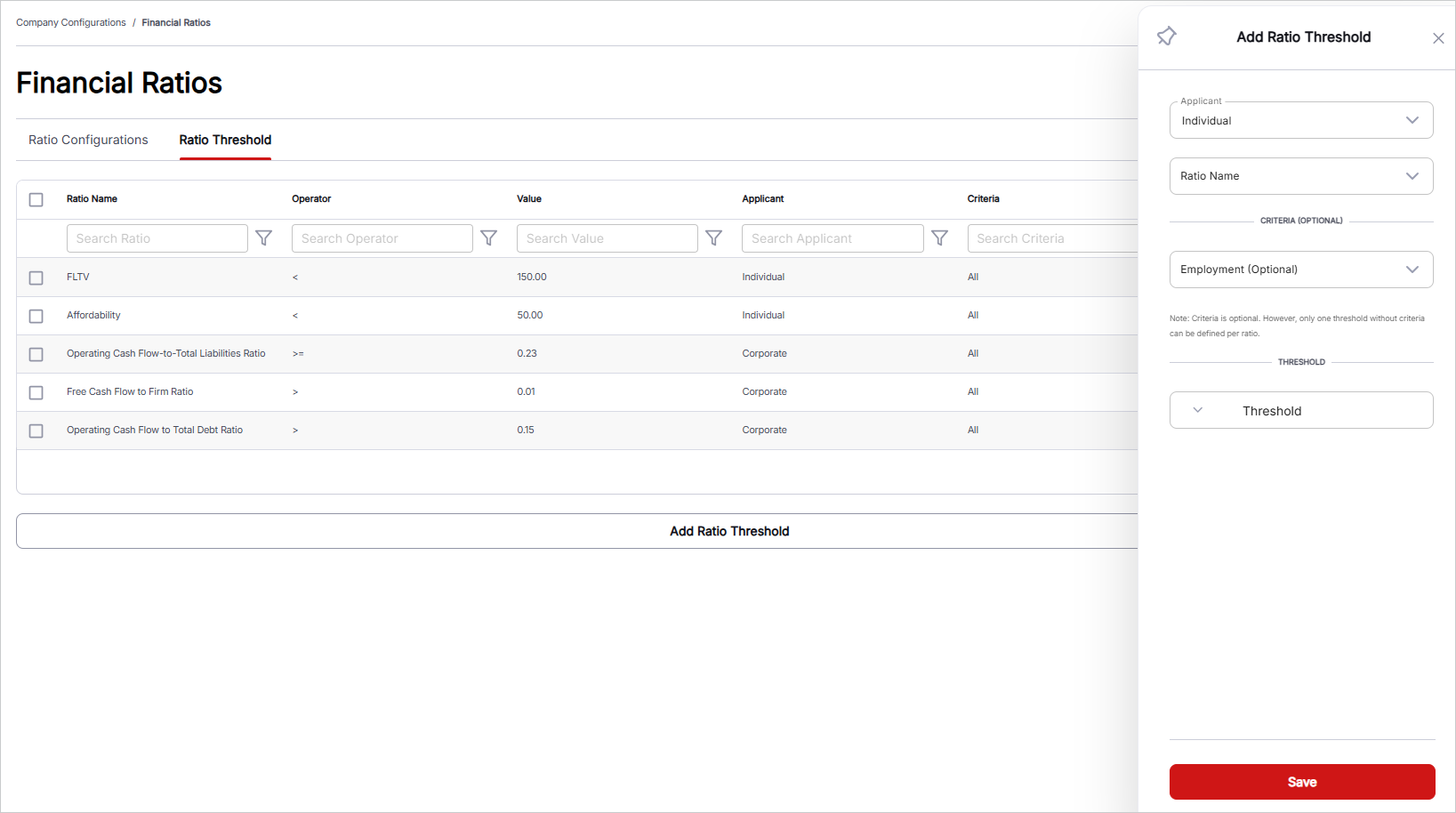
- Add Ratio Threshold: Click this button to add a new ratio threshold. Define the applicant type, ratio, applicable criteria, threshold condition, and threshold value.
- Select Applicant: Choose the applicant type from the drop-down list. Available options include Individual and Corporate.
- Select Ratio Name: Choose the applicable financial ratio from the drop-down list. The available ratios depend on the selected applicant type. For example, individual applicants may include LTV, DTI, and PTI, while corporate applicants may include ratios such as Liquidity, Current Ratio, Quick Ratio, Cash Ratio, Debt-to-Equity Ratio, Debt-to-EBITDA Ratio, Debt-to-Asset Ratio, Interest Coverage Ratio, Debt Service Coverage Ratio, Net Profit Margin, Return on Assets, Return on Equity, Operating Cash Flow to Total Debt Ratio, Free Cash Flow to Firm Ratio, and Operating Cash Flow-to-Total Liabilities Ratio.
- Select Criteria: Define the criteria applicable to the selected ratio. The available criteria depend on the selected applicant type. a. For Individual applicants, select one or more applicable Employment Types, such as Employed, Unemployed, Self Employed, and Retired. b. For Corporate applicants, select one or more applicable Nature of Business options, such as Manufacturing, Trading, Retail, and Servicing.
- Select Threshold Condition: Choose the condition to be applied to the threshold from the drop-down list. Available options include Greater Than, Less Than, Greater Than Equal To, and less Than Equal To.
- Input Threshold: Enter the numeric threshold value applicable to the selected ratio and criteria. The threshold value supports up to two decimal places.
- Managing Existing Records: Ratio thresholds that have already been added are displayed in a tabular format. A Search Bar is available on each column to filter records based on search criteria. An ellipsis menu is available on the right side of each record to Edit/Delete the respective ratio threshold.