Create New Quotation
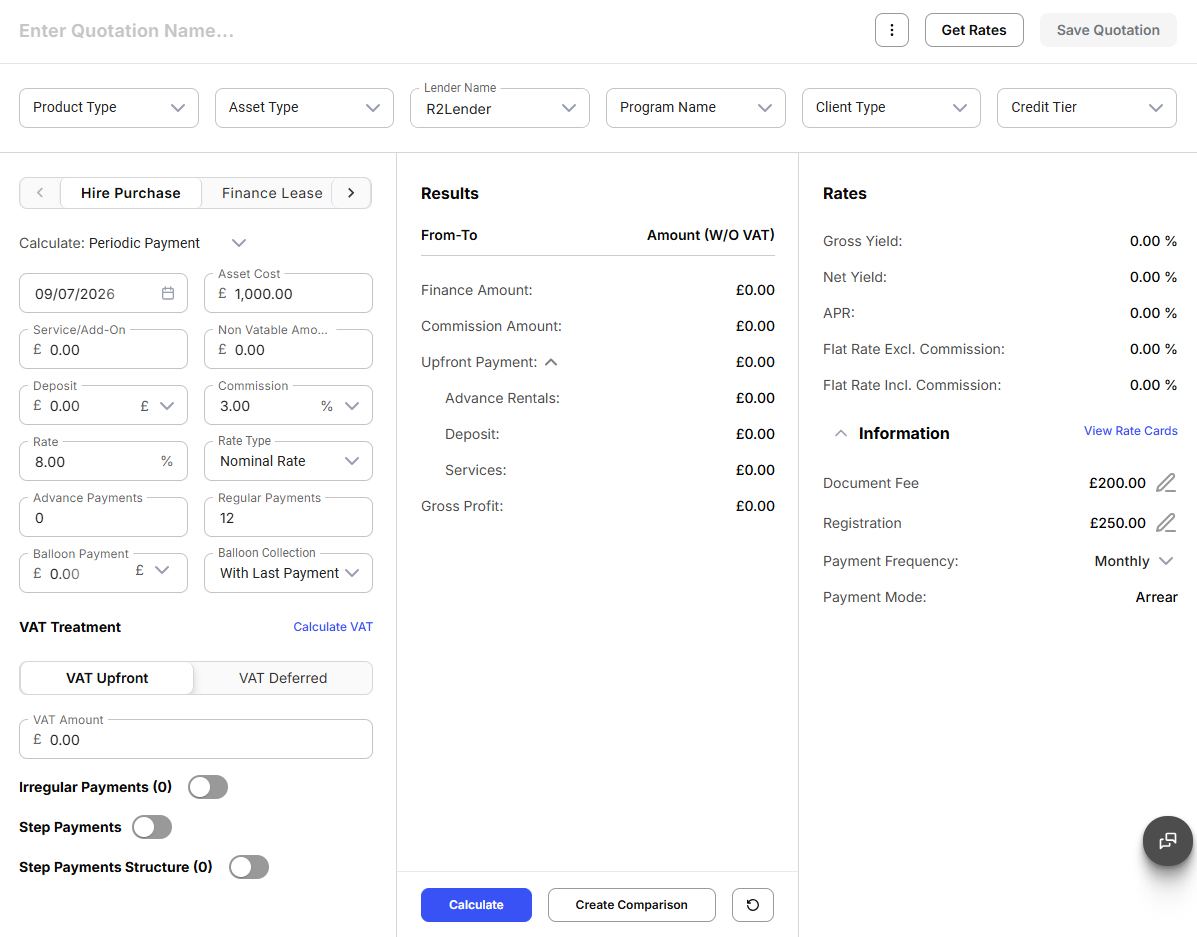
The Create New Quotation screen is designed to simplify the process of generating accurate and tailored financial quotations. By calculating key figures such as Periodic Payments, Financed Amount, Deposit Amount, Commission Amount, and Rates, the screen ensures consistency with business rules using pre-configured default settings.
At the same time, users can edit editable parameters to create customized quotations that align with specific client needs. The screen is organized into five key sections:
- Header Section: In the Header Section, users can input general details and perform actions such as saving quotations, converting them to proposals, downloading, or sending them to clients.
- Create Quotation: The Create Quotation section allows users to adjust parameters.
- Results: The Results section displays calculated financial details.
- Rates: The Rates section outlines the applicable rates.
- Information: The Information section includes essential details such as fee amounts, payment frequency, payment mode, and the total number of installments.
This structured layout ensures precision, flexibility, and clarity in every generated quotation.
Header Section
The Header Section of the screen provides essential tools for initiating and managing a quotation.
Users are required to Enter a Quotation Name as the first step.
In the header section users can select:
- Product Type (e.g., Regulated, Non-Regulated)
- Asset Type (e.g., Vehicle, Equipment, Soft Asset, Hard Asset etc.)
- Lender Name: Any lender that is configured to show up in the list.
- Program Name:: Any program that is created and configured for the application.
- Client Type (e.g., Limited Company, Partnership, Individual, Sole Trader, Government Organization, Non-Profit Organization)
- Credit Tier (e.g., Below Average, Good, Very Good, Excellent) from dedicated drop-down lists to ensure accurate categorization and assessment.
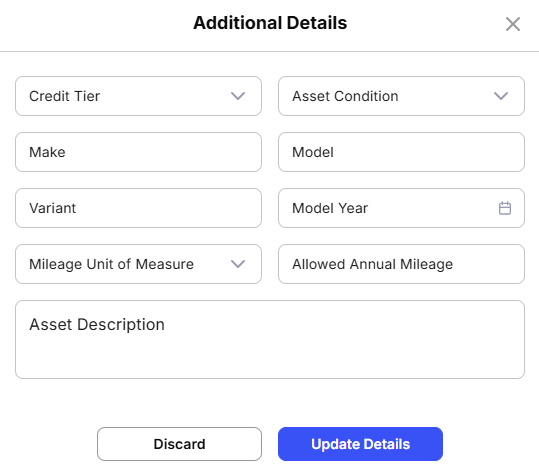
An additional section is made available in the header if Asset Type of Hard Asset is selected. In this Additional Details section you need to provide further details of the asset.
For dealer users, an additional option Choose Asset From Inventory is available. By selecting this option, a dedicated window opens, allowing the user to choose an asset directly from the dealership’s inventory.
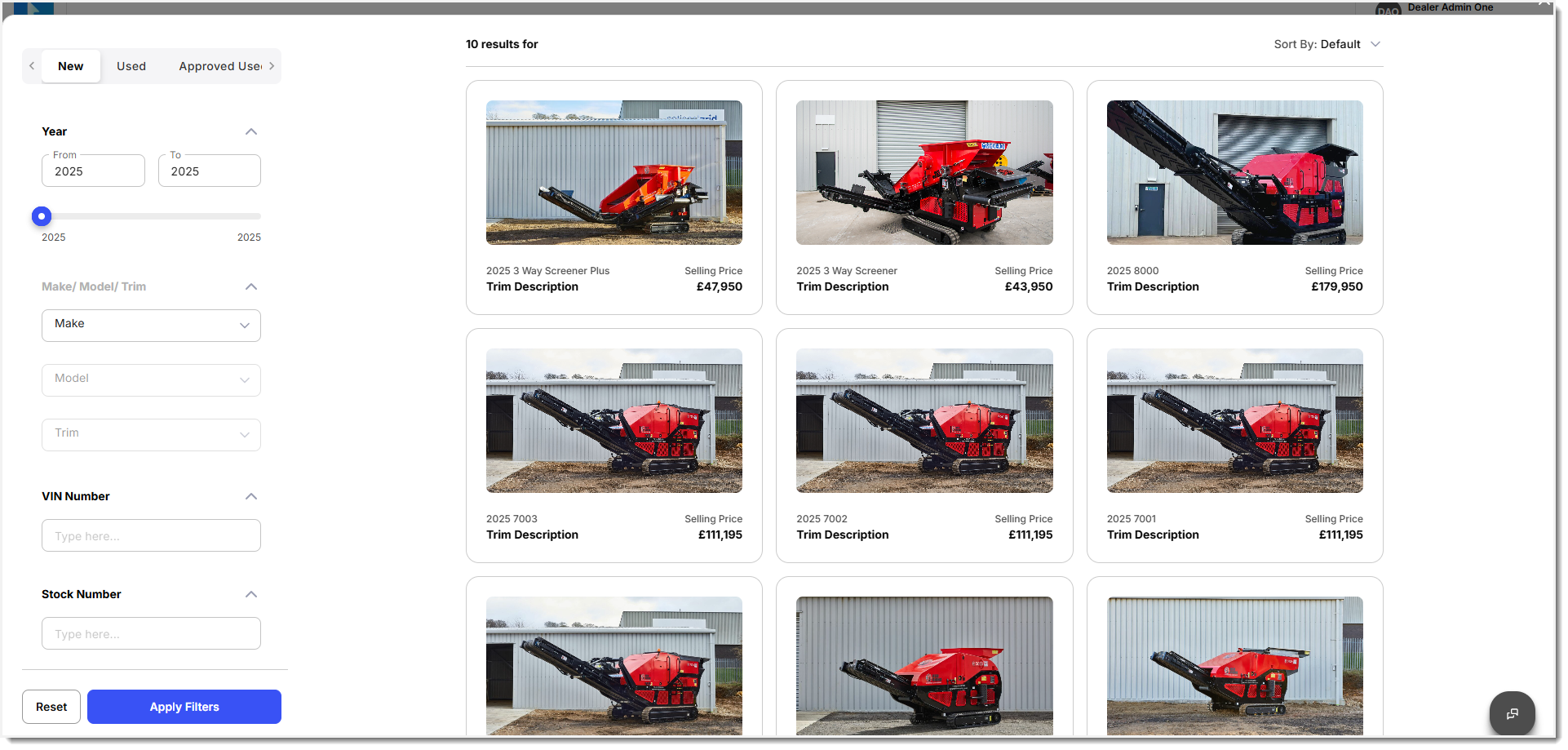
The window provides tab-based filtering options, including New, Used, and Approved Use. Within each tab, users can further refine their search using filters such as Price Range, Year, Make, Model/Trim, VIN Number, and Stock Number, ensuring accurate and efficient asset selection.
An ellipsis menu at the top of the screen offers key actions for managing the quotation:
-
Convert to Proposal: Instantly convert the quotation into a comprehensive proposal.
-
Download Quote: Download the quotation as a document for offline use or sharing.
-
Quote Acceptance: Send the quotation directly to the client via email.
Additionally, the Save Quotation button is available in the Header Section to save the quotation details at any stage for future reference or further editing.
Furthermore, the Get Rate button allows user to get pre-defined configuration and replace them with the values in the quotation for use depending on the need.
Create Quotation
The Create Quotation section provides users with the ability to define and customize all parameters required to generate accurate and tailored financial quotations.
This section ensures flexibility by allowing users to input key financial details while maintaining consistency with pre-configured business rules. Users can generate quotations for various lending operations, adjust parameters based on client needs, and customize calculations.
It offers a structured interface to input critical details such as: amounts, rates, payments, and payment structures.
Generate Quote Create Quote
-
Lending Operations: Users can generate quotations for different types of lending operations, including Sale and HP Back, Sale and Lease Back, Operating Lease, Finance Lease, Hire Purchase, and Loan. Simply click on the required tab to begin.
-
Calculation Type: Select the desired calculation type from the drop-down list, such as Periodic Payments, Financed Amount, Deposit Amount, Commission Amount, or Rates, depending on the type of quotation required.
-
Date: Input the date on which the quotation is being generated.
-
Asset Amount: Enter the total asset value for the quotation.
-
Non-Vatable Amount: Enter the portion of the amount that is not subject to VAT.
-
Deposit Amount: Specify the deposit or down payment. The value can be entered as either an amount or a percentage, depending on the selection made in the drop-down field.
-
Commission Amount: Input the commission. The value can be entered as either an amount or a percentage, depending on the drop-down selection.
-
Rate: Input the applicable rate for the quotation calculation.
-
Rate Type: Select the rate type for the quotation. The available options include:
-
Normal Rate: The standard rate used for straightforward interest calculations.
-
APR (Annual Percentage Rate): A comprehensive rate reflecting the true cost of borrowing, including fees and interest.
-
Flat Rate: A fixed interest rate applied throughout the term of the loan.
-
-
Advance Payments: Enter the number of advance payments to be made at the start of the contract.
-
Regular Payments: Enter the number of regular payments required for the term of the contract.
-
Balloon Payment: Specify the balloon payment amount to be made at the end of the contract. Under Balloon Collection, choose when the balloon payment will be collected. Examples include: With the last payment, One month after the last payment, Two months after the last payment etc.
-
VAT Treatment: This section allows users to manage how VAT is applied in the quotation. Click Calculate VAT to compute the VAT amount based on the asset value and applicable rate.
-
VAT Type: Choose from the available options:
-
Upfront: The full VAT amount will be paid at the beginning of the contract.
-
Deferred: VAT payment is delayed and requires additional inputs:
- VAT Amount: Enter the VAT amount to be deferred.
- Number: Specify the number of periods over which the VAT will be deferred.
- Deferred: Select the deferment frequency from the drop-down options: Month or Rental.
-
- Irregular Payments: If the quotation involves irregular rental payments, enable this section using the toggle button. Once enabled, users can input details of irregular payments, including:
-
Start Term: Define the starting term number for the irregular payment.
-
End Term: Define the ending term number for the irregular payment.
-
Amount: Enter the irregular payment amount.
-
Irregular Payment Type: Select the payment type:
-
Structured: Payments with varying amounts at specified intervals, defined by “term from” and “term to”.
-
Bonus: A combination of structured payments and regular payments.
-
-
Users can add multiple records under Irregular Payments by clicking the Add More button.
- Step Payments: This section is used to define parameters for step payments, which can be either step-up or step-down payments based on customer requirements. Users can:
-
Define the frequency and percentage for step payment calculations.
-
Step Payment Types include:
-
Step-Up Payments: Increasing payment amounts over time.
-
Step-Down Payments: Decreasing payment amounts over time.
-
-
Users can also define a customized step payment structure, similar to irregular payments, for required scenarios.
- Mutual Exclusivity: Users must choose either Step Payments or a Custom Step Payment Structure, as both cannot be defined simultaneously in a single quotation.
This section ensures users have the flexibility to tailor the quotation to align with client-specific needs while adhering to organizational standards for accuracy and compliance.
Results
The Results section allows users to calculate and review the outcomes of the generated quotation. By clicking the Calculate button, users can instantly view the calculated results for key financial details, including:
- Periodic Payments
- Financed Amount
- Deposit Amount
- Commission Amount or Rates, depending on the selected calculation type.
This section also provides users with the ability to view the Repayment Plan, offering a detailed breakdown of payment schedules and amounts.
Additionally, users can utilize the Create Comparison feature to compare multiple quotations side by side, ensuring they can evaluate various scenarios before finalizing and saving the quotation details. For recalculating or refreshing the displayed results, users can use the Refresh button.
Rates
The Rates section offers users a comprehensive overview of key financial metrics associated with the generated quotation. These metrics include:
-
Gross Yield: The total return generated on the quotation before deductions.
-
Net Yield: The return after accounting for deductions such as commissions or other fees.
-
APR (Annual Percentage Rate): A standardized measure of the annual cost of financing, inclusive of fees and interest.
-
Flat Rate Including Commission: The flat rate calculated while factoring in the commission.
-
Flat Rate Excluding Commission: The flat rate calculated without considering the commission.
The fields shown in this section may differ depending on the parameters defined in the quotation.
This section ensures users have a clear and transparent understanding of the financial terms applied during the quotation process, enabling them to make informed decisions with complete clarity.
Information
The Information section provides users with vital details about the generated quotation, ensuring transparency and flexibility. This section includes:
-
View Rate Cards: Provides a direct option to view the applicable rate cards configured for different client or product profiles. This helps users verify rates and ensure the selected quotation aligns with predefined terms.
-
Fees: Displays amounts for various fees, such as document fees and annual admin fees. Users can edit these fees if they were configured as editable during the setup phase. This allows customization based on specific client needs.
-
Payment Frequency: Users can modify the frequency of payments (e.g., monthly, quarterly) if this parameter was marked as editable during the initial configuration. Adjusting the frequency ensures alignment with client payment preferences.
-
Payment Mode: Refers to how payments on a loan or credit agreement are structured, offering clarity and options to suit client requirements. The two common payment modes are:
- Advance Payment Mode: In this mode, the borrower makes the payment at the start of the specified period. For instance, with a monthly payment schedule, payments are made at the beginning of each month, covering the upcoming period.
- Arrears Payment Mode: In this mode, the borrower makes the payment at the end of the specified period. For example, with a monthly payment schedule, payments are made at the end of each month, covering the elapsed period.
The fields shown in this section may differ depending on the parameters defined in the quotation.
This section empowers users to fine-tune essential details and ensures the quotation is tailored to meet the unique needs of each client.