Team Dashboard
The Team Dashboard gives a clear and organized overview of a selected teams’ proposal activities and overall performance. The dashboard includes visual tools such as pie charts and bar charts, offering insights into various aspects of proposal management. Additionally, all proposals are displayed in a searchable table format, allowing users to locate and manage specific proposals with ease.
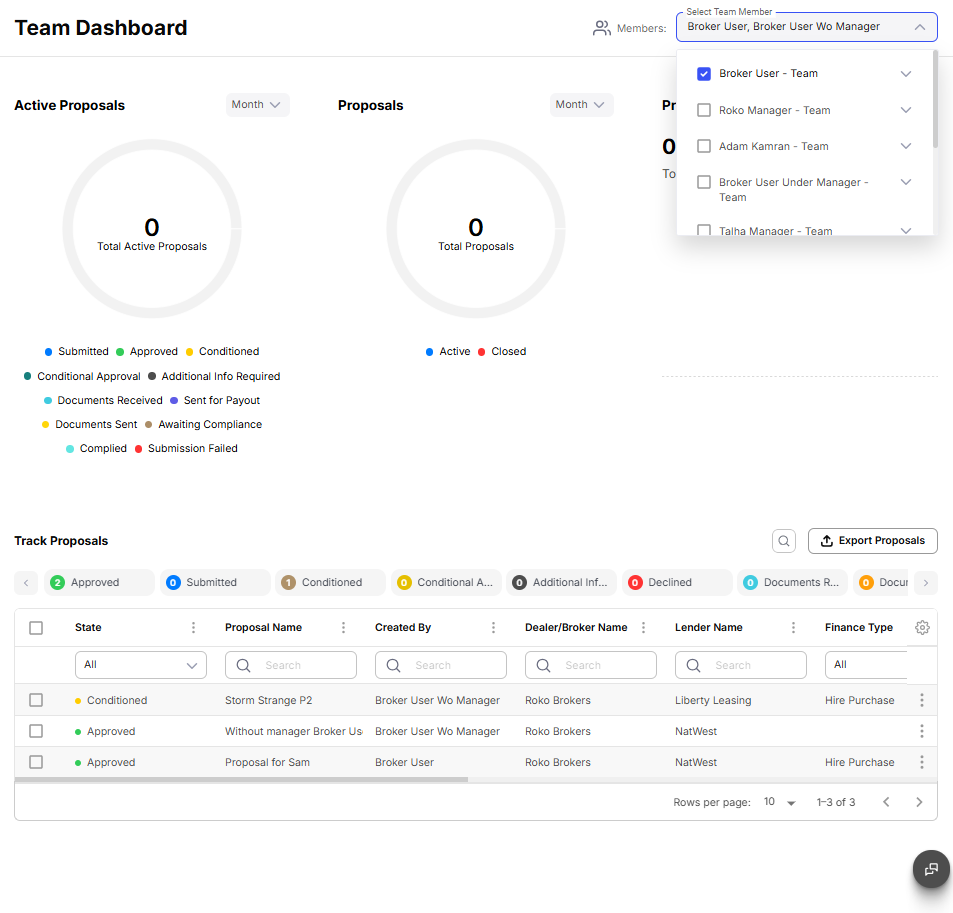
To select the team(s), click the Members dropdown on the top-right side of the dashboard and select the required team(s). Once the team(s) is selected, the dashboard will update all metrics immediately.
Active Proposals
The Active Proposals pie chart visually represents the distribution of statuses for all active proposals. It categorizes proposals into statuses such as Submitted, Approved, Conditioned, Conditional Approval, Additional Info Required, Documents Received, Sent for Payout, Documents Sent, Awaiting Compliance, and Complied. Users can customize the displayed data’s time span by selecting options such as Weekly, Monthly, Quarterly, or Calendar Year. This helps users focus on specific periods and analyze trends effectively.
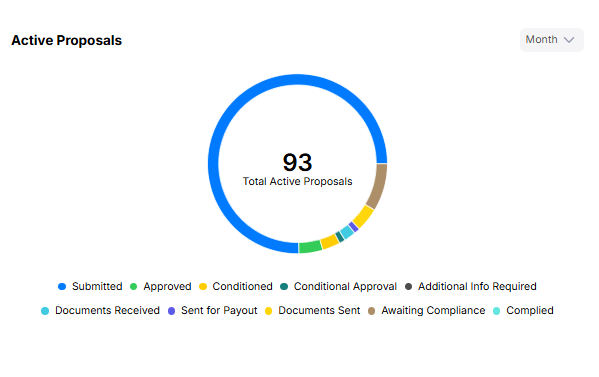
You can adjust the timeframe to Weeks, Months, Quarter, and Calender Year.
Proposals
The Proposals pie chart provides a high-level overview of the status of all proposals, categorized as Active and Closed. Each category is represented by a unique color, showing the proportion of proposals in each status. Users can select a time span, such as Weekly, Monthly, Quarterly, or Calendar Year, to analyze proposal distribution over different periods.
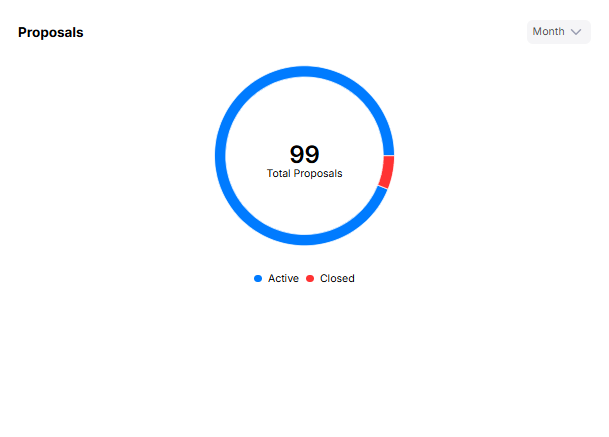
You can adjust the timeframe to Weeks, Months, Quarter, and Calender Year.
Proposal Aging
The Proposal Aging bar chart displays how proposals are distributed over a selected period, helping users understand proposal timelines and identify trends. Users can adjust the chart’s time span using options like Weekly, Monthly, Quarterly, or Calendar Year. This allows for detailed analysis of proposal aging and activity patterns.
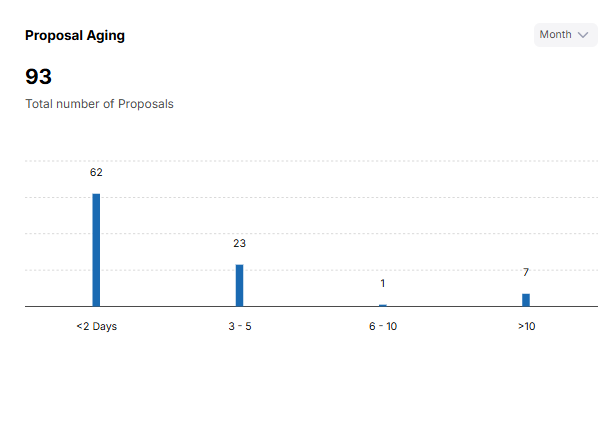
You can adjust the timeframe to Weeks, Months, Quarter, and Calender Year.
Track Proposals
The Team Dashboard includes a comprehensive Track Proposals table that provides detailed information about each proposal. This table helps users manage proposals efficiently by filtering and sorting data according to specific criteria. A search bar is available at the top of each column for easy filtering. Users also have the option to Export Proposals using the dedicated button provided on the table, allowing for external analysis and reporting.
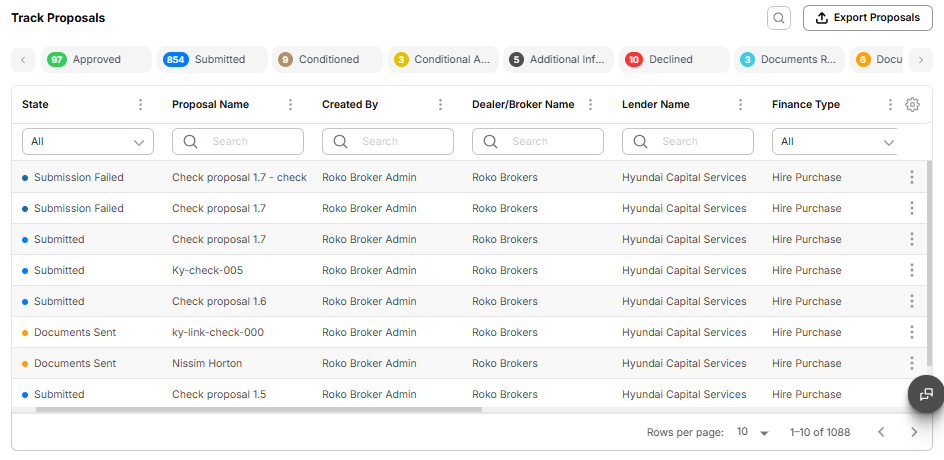
You can click the status cards to instantly filter proposals the specified status.
Columns Available
Track Proposals Columns Available
The available columns are configurable, the columns can be shown/hidden clicking the Gear on the right hand side of the table. Click the Gear Icon → Edit Columns to customize.
-
State: Displays the current status of the proposal. Users can filter proposals based on various states, such as All, Approved, Submitted, Conditioned, Declined, Documents Received, Documents Sent, Paid Out and Sent for Payout.
-
Proposal: Shows the unique identifier or name of the proposal. This column allows users to quickly identify specific proposals by their reference.
-
Created By: Displays the user who originally created the proposal.
-
Finance Type: Indicates the type of proposal, which helps in categorizing proposals based on predefined types or categories.
-
Customer Name: Lists the names of the customers associated with each proposal, allowing for easy identification of proposals by customer.
-
Dealership: Indicates the dealership linked to the proposal, which is especially relevant for dealer-submitted proposals.
-
Date Submitted: Indicates the date when the proposal was submitted, allowing users to sort and filter proposals based on submission dates.
-
Finance Amount: Displays the financial value or amount associated with the proposal, providing an overview of the monetary details of each proposal.
-
Last Updated: Shows the most recent date when the proposal was updated, helping users track the latest changes or updates made to each proposal.
-
Start Date: Displays the date when the proposal activities began, helping users monitor the initiation timeline.
-
End Date: Shows the date when the proposal activities are expected to conclude, aiding in deadline management.
The available and hidden/shown columns may differ from mentioned above depending on the configuration.
Actions Available on Ellipsis Menu
Track Proposals Actions Available
-
Manually Change Status: Enables users to manually change the status of a proposal, providing flexibility in managing proposal progress.
-
Withdraw Proposal: Provides the option to withdraw a proposal, effectively removing it from the active pipeline.
-
View Proposal Summary: Provides a summarized view of the proposal, highlighting key details and information in a concise format.
-
View Proposal: Allows users to view detailed information about a proposal.
-
Download Proposal: Enables users to download the proposal document, allowing for offline review and sharing.
-
Upload Documents: Allows users to upload necessary documents related to the proposal, facilitating document management and compliance.
-
View Compliance Documents: Displays any required compliance-related documents uploaded or linked to the proposal.
-
Diary: Enables users to view a log of all changes made to the proposal, offering a detailed history of actions and updates for tracking purposes.
-
Generate Documents: Enable to user to generate associated documents.
-
Clone Proposal: Enable the user to clone a proposal to be used as needed.
-
Generate Contract Documents: Allows the the to generate contract documents against the proposal.
-
Generate Acceptance Documents: Allows the the to generate acceptance documents against the proposal.
The available actions may differ depending on the configuration.