Workqueue
The Workqueue option, available under the Proposals and Quotations menu, serves as a centralized hub for users to manage and monitor proposals and quotations efficiently.
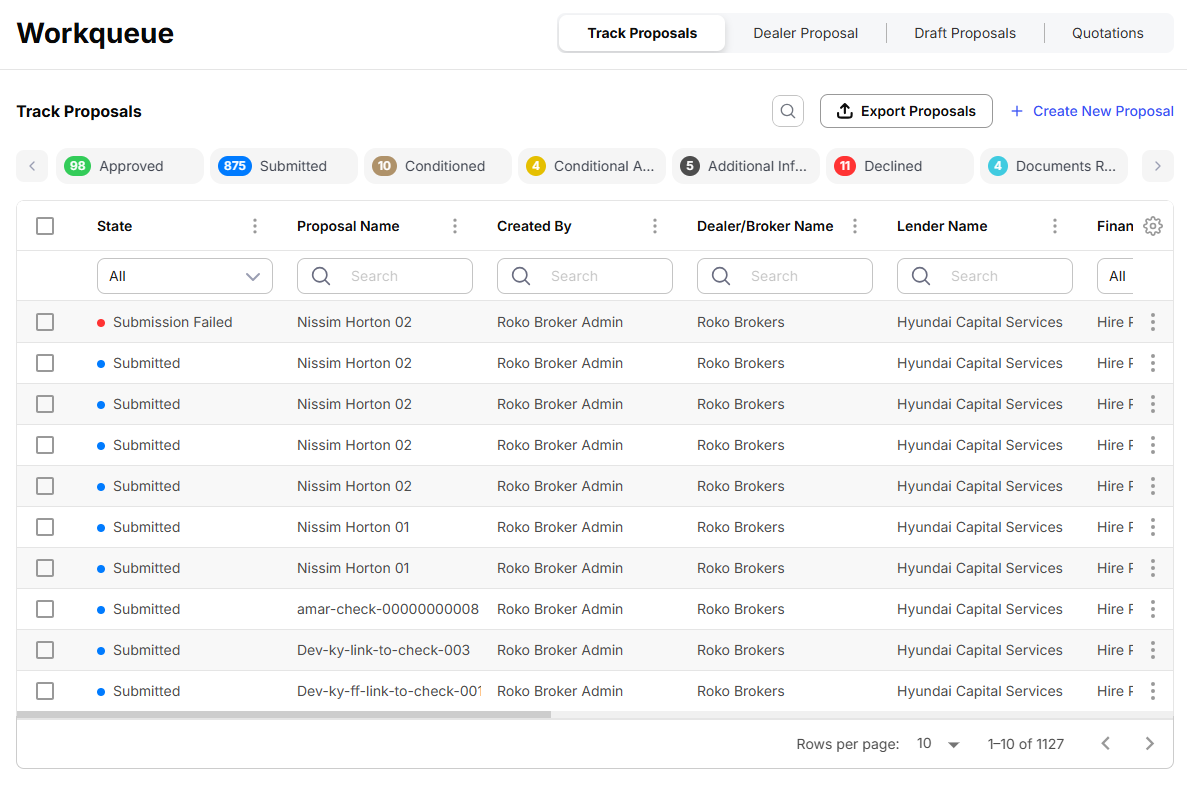
This feature organizes workflows into distinct tabs, each tailored to a specific stage of the proposal and quotation lifecycle.
- The Track Proposals tab provides users with a comprehensive view of all submitted proposals, allowing for easy monitoring of their progress and current status.
- The Dealer Proposal tab focuses on proposals submitted to brokers by dealership users, enabling broker users to track those under review. For proposals that are still in progress.
- The Draft Proposals tab lists all draft versions, making it convenient for users to locate, edit, or continue working on incomplete proposals. Finally
- The Quotations tab displays all generated quotations, giving users a quick overview of quotes prepared for various clients.
Each tab presents information in a clear, tabular format, and includes action options like View and Edit, empowering users to manage tasks seamlessly and maintain full control over their proposals and quotations.
Track Proposals
The Track Proposals tab provides users with a comprehensive overview of all proposals, enabling effective monitoring of their progress and status.
This tab includes a searchable table that allows users to locate and manage proposals easily. A search bar at the top of each column facilitates filtering and sorting records based on specific criteria, helping users quickly find the information they need.
Columns Available
The table contains several key columns that display critical details about each proposal, along with an ellipsis menu in every row offering additional actions for efficient proposal management.
-
State: Displays the current status of each proposal, such as All, Approved, Submitted, Conditioned, Conditional Approval, Additional Info Required, Declined, Documents Received, Documents Sent, Paid Out, Sent for Payout, Withdrawn, Awaiting Compliance, and Complied.
-
Proposal Name: Lists the name of each proposal, making it easy to identify and differentiate between multiple entries.
-
Created By: Displays the name of the user who created the proposal, helping to track ownership and accountability.
-
Finance Type: Indicates the type of proposal, such as Sales & HP Back, Hire Purchase, Finance Lease, Loan, Sales & Lease Back, or Operating Lease.
-
Customer Name: Displays the name of the customer associated with the proposal.
-
Dealership: Shows the name of the dealership associated with the proposal, helping users connect proposals to their source.
-
Finance Amount: Highlights the total financed amount for each proposal.
-
Last Updated: Indicates the date the proposal was last modified, allowing users to track recent changes.
-
Date Submitted: Shows the date when the proposal was submitted, aiding in timeline management.
-
Start Date: Displays the start date of the proposal activity, providing a reference for its initiation.
-
End Date: Displays the end date of the proposal activity, helping with planning and follow-ups.
The columns shown may differ depending on the configurations by the organization.
Actions Available
Each row in the table has an ellipsis menu with the following actions:
-
View Proposal: Open the selected proposal to review its details.
-
Edit Proposal: Open the selected proposal to edit its details.
-
View Proposal Summary: Access a summary of the proposal to quickly review its details and current status.
-
Download Proposal: Download a copy of the proposal for offline review or sharing with stakeholders.
-
Clone Proposal: Create a duplicate of the proposal to quickly generate a similar one without starting from scratch.
-
Diary: View a log of all activities and modifications related to the proposal, ensuring transparency and easy tracking.
This structured approach ensures users can efficiently track, manage, and take appropriate actions on their proposals from a single, user-friendly interface.
Dealer Proposal
The Dealer Proposal tab provides users with a focused view of proposals that have been created by dealers and are currently in the “New” state.
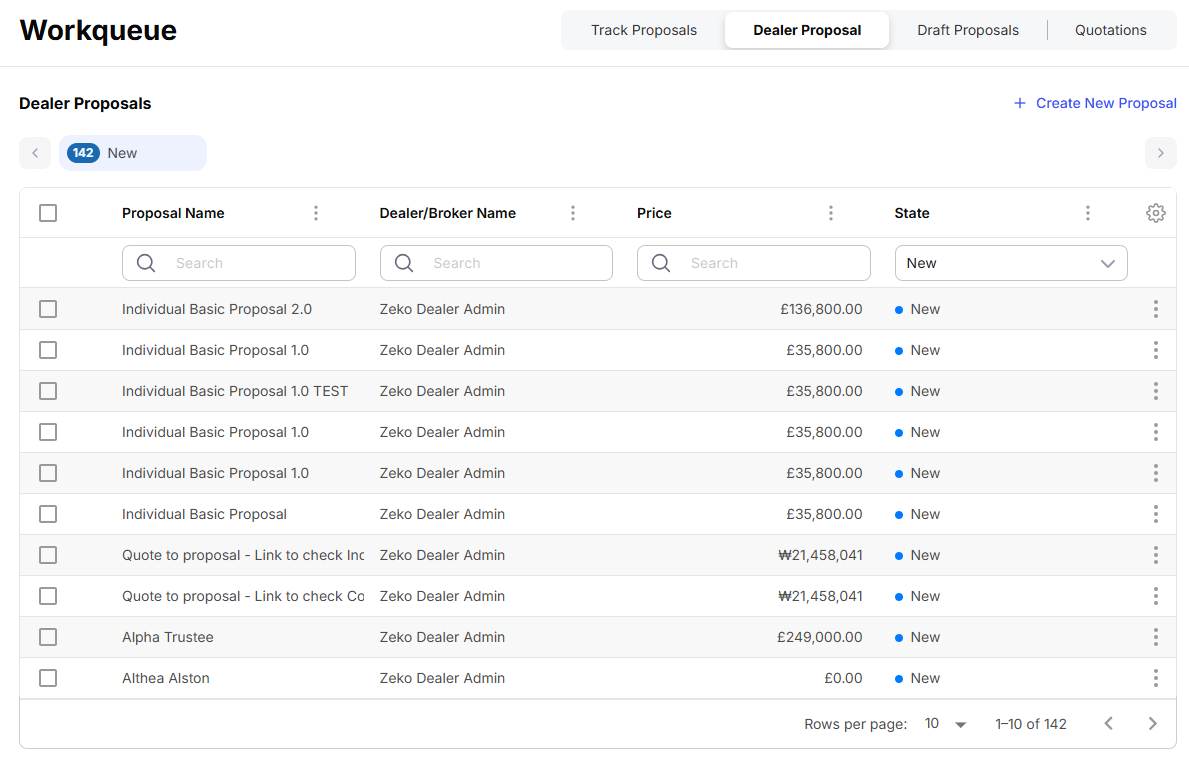
This tab is designed to help users monitor and manage proposals in the early stages of processing. With a searchable table, users can efficiently locate and filter records using the search bar at the top of each column, ensuring quick access to the required information.
Columns Available
The available columns include:
-
State: Displays the status “New”, indicating that these proposals are in the initial stage of processing.
-
Proposal Name: Shows the name of each proposal, making it simple to identify individual entries.
-
Created By: Displays the name of the user who created the proposal, helping to identify the source of submission.
-
Finance Type: Indicates the type of proposal, such as Sales & HP Back, Hire Purchase, Finance Lease, Loan, Sales & Lease Back, or Operating Lease.
-
Customer Name: Displays the name of the customer associated with the proposal, enabling easy identification.
-
Dealership: Displays the dealership name associated with the proposal, supporting traceability.
-
Price: Displays the total price or amount associated with each proposal.
-
Last Updated: Shows the most recent date when the proposal was updated, helping users track recent activities or changes.
The columns shown may differ depending on the configurations by the organization.
Actions Available
Each row in the table includes an ellipsis menu that offers various actions to manage the proposals effectively:
-
Manually Change Status: Users can manually update the status of a proposal, ensuring records remain accurate and current.
-
View Proposal: Opens the selected proposal to review its details.
-
Edit Proposal: Allows users to make necessary changes or updates to the proposal.
-
View Proposal Summary: Displays a detailed summary of the proposal, providing a quick overview of its key details and status.
-
Upload Documents: Allows users to upload required documents directly to the proposal, streamlining the submission process.
-
Download Proposal: Enables users to download a copy of the proposal for offline review or sharing with stakeholders.
-
Clone Proposal: Facilitates the creation of a duplicate proposal, enabling users to quickly generate a similar one without starting from scratch.
-
Diary: Provides a log of all changes and updates made to the proposal, ensuring transparency and easy tracking.
The Dealer Proposal tab ensures that users can effectively monitor and manage proposals in the “New” state, helping streamline the initial stages of the proposal workflow while maintaining organized records.
Draft Proposals
The Draft Proposals tab offers users a centralized location to view and manage proposals that are still in draft status.
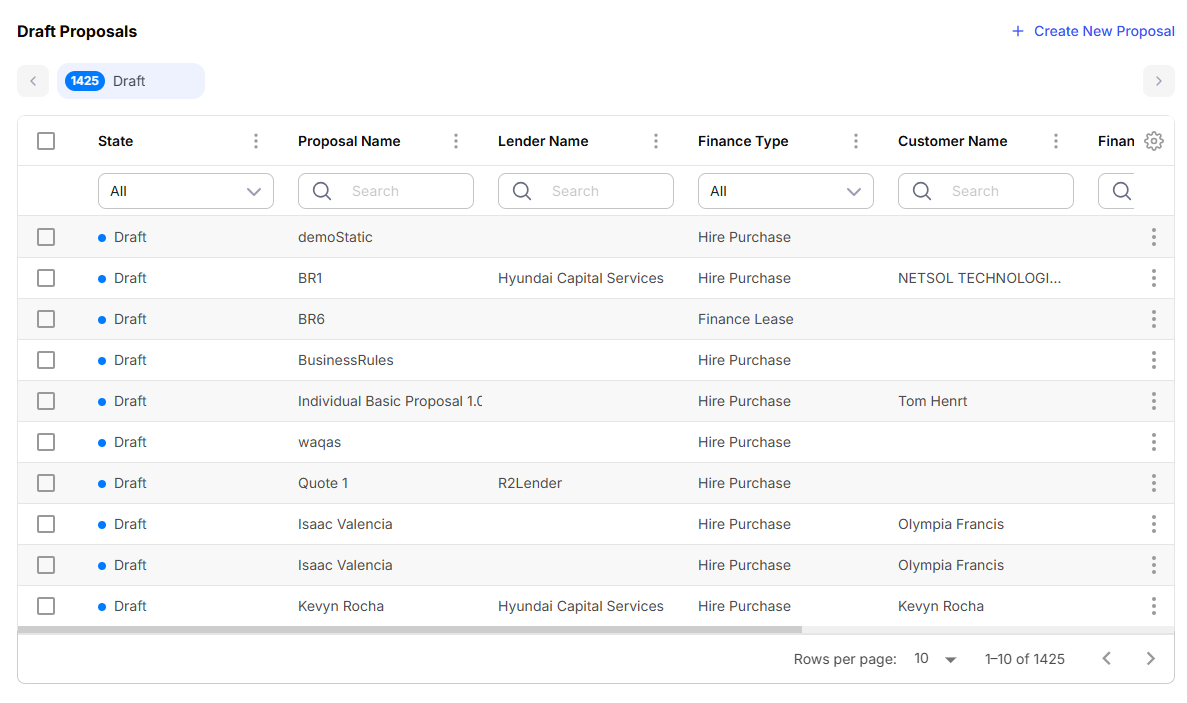
This tab is designed to help users track and edit proposals that are under development and have not yet been submitted for approval. A searchable table is provided, allowing users to filter and locate specific draft proposals by using the search bar available at the top of each column. This feature ensures quick access to the desired information and helps streamline the proposal management process.
Columns Available
The columns include:
-
State: Displays the status as “Draft”, signifying that these proposals are still being prepared and finalized.
-
Proposal Name: Lists the name of each proposal, allowing users to easily identify and differentiate between various drafts.
-
Created By: Shows the name of the user who created the draft proposal.
-
Finance Type: Indicates the type of financial arrangement for each proposal, such as Sales & HP Back, Hire Purchase, Finance Lease, Loan, Sales & Lease Back, or Operating Lease.
-
Customer Name: Shows the name of the customer associated with the draft proposal, aiding in easy identification of the client.
-
Finance Amount: Displays the total financing amount related to the proposal, helping users understand the financial scope of the draft.
-
Last Updated: Provides the date when the proposal was most recently updated, serving as a reference for tracking changes or activities.
The columns shown may differ depending on the configurations by the organization.
Actions Available
Each row in the table includes an ellipsis menu offering the following actions to help users manage their draft proposals effectively:
-
Manually Change Status: Allows users to manually update the status of a draft proposal, ensuring records remain up-to-date and accurate.
-
View Proposal: Opens the selected proposal for detailed viewing.
-
Edit Proposal: Enables users to make any necessary modifications to the draft proposal.
-
View Proposal Summary: Provides a concise summary of the proposal, presenting its essential details and current status for a quick review.
-
Upload Documents: Enables users to attach required documents directly to the draft proposal, streamlining its preparation process.
-
Download Proposal: Lets users download a copy of the draft proposal for offline access or sharing with stakeholders.
-
Clone Proposal: Facilitates the duplication of a draft proposal, making it easier to create a similar proposal without starting from scratch.
-
Diary: Displays a detailed log of all changes made to the draft proposal, ensuring transparency and enabling efficient tracking of updates.
The Draft Proposals tab ensures users have full control over their in-progress proposals, offering a structured and efficient way to finalize and prepare proposals for submission.
Quotations
The Quotations tab provides users with a centralized location to view and manage all generated quotations.
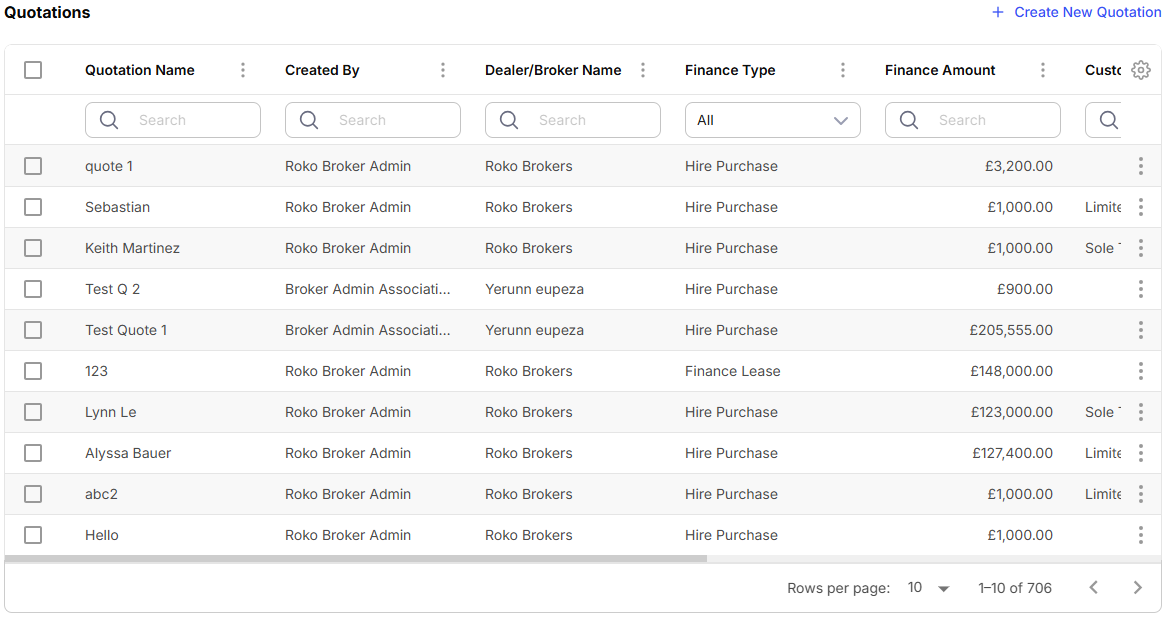
This tab is designed to give users a comprehensive overview of their quotations, allowing them to monitor progress and manage them effectively.
A searchable table is available on the screen, equipped with a search bar at the top of each column. This feature helps users quickly locate specific quotations by filtering records based on various attributes, ensuring efficient navigation and management.
Columns Available
The available columns include:
-
Quotation Name: Displays the name of each quotation, helping users easily identify and select the quotation they wish to review or manage.
-
Finance Type: Indicates the type of financial arrangement associated with each quotation, such as Sales & HP Back, Hire Purchase, Finance Lease, Loan, Sales & Lease Back, or Operating Lease.
-
Finance Amount: Shows the amount of financing tied to each quotation, offering clarity on the financial scope of the quote.
-
Customer Type: Refers to the type of customer associated with the quotation, such as Individual, Partnership, Limited Company, or SME.
-
Last Updated: Displays the date when the quotation was last modified, helping users track recent changes or updates to the record.
-
Signature Status: Shows the e-signature status of each quotation. Statuses include All, Signed, In Progress, Not Started, and Signature Not Required.
The columns shown may differ depending on the configurations by the organization.
Actions Available
Each row in the table includes an ellipsis menu, offering the following actions for managing quotations effectively:
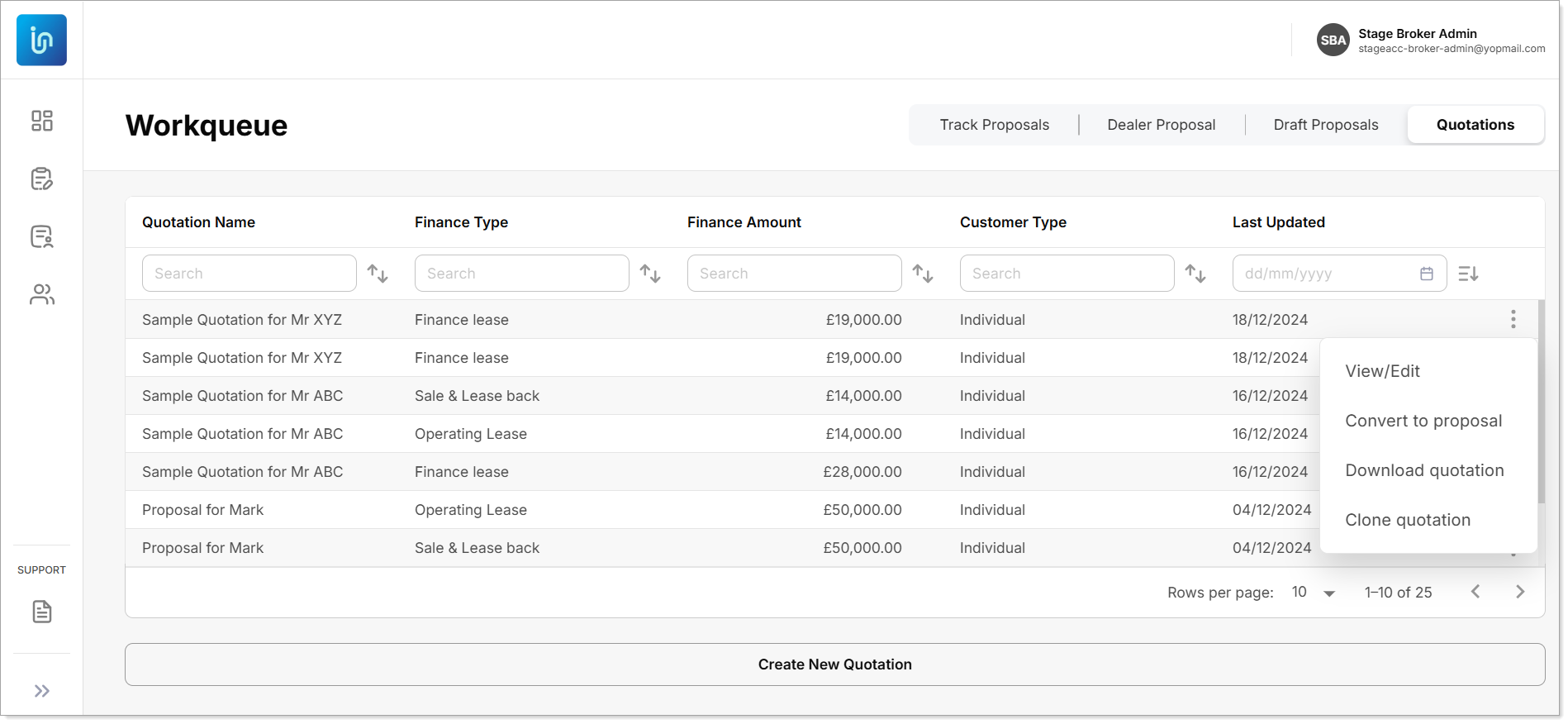
Each row in the table includes an ellipsis menu, offering the following actions for managing quotations effectively:
-
View/Edit: Opens the selected quotation for review or modification, enabling users to update details as needed.
-
Download Quotation: Enables users to download a copy of the quotation for offline review or sharing with stakeholders.
-
Convert to Proposal: Provides the option to convert a quotation into a proposal, streamlining the transition to a formal proposal for the client.
-
Clone Quotation: Creates a duplicate of the selected quotation, allowing users to quickly generate a similar quotation without starting from scratch.