DUI (Dynamic User Interface)
The Dynamic User Interface (DUI) module enables administrators to customize the appearance of supported application screens without modifying the underlying functionality. It allows users to control field visibility and define user-friendly labels for configured screens, providing flexibility to tailor the interface to specific business or operational requirements.
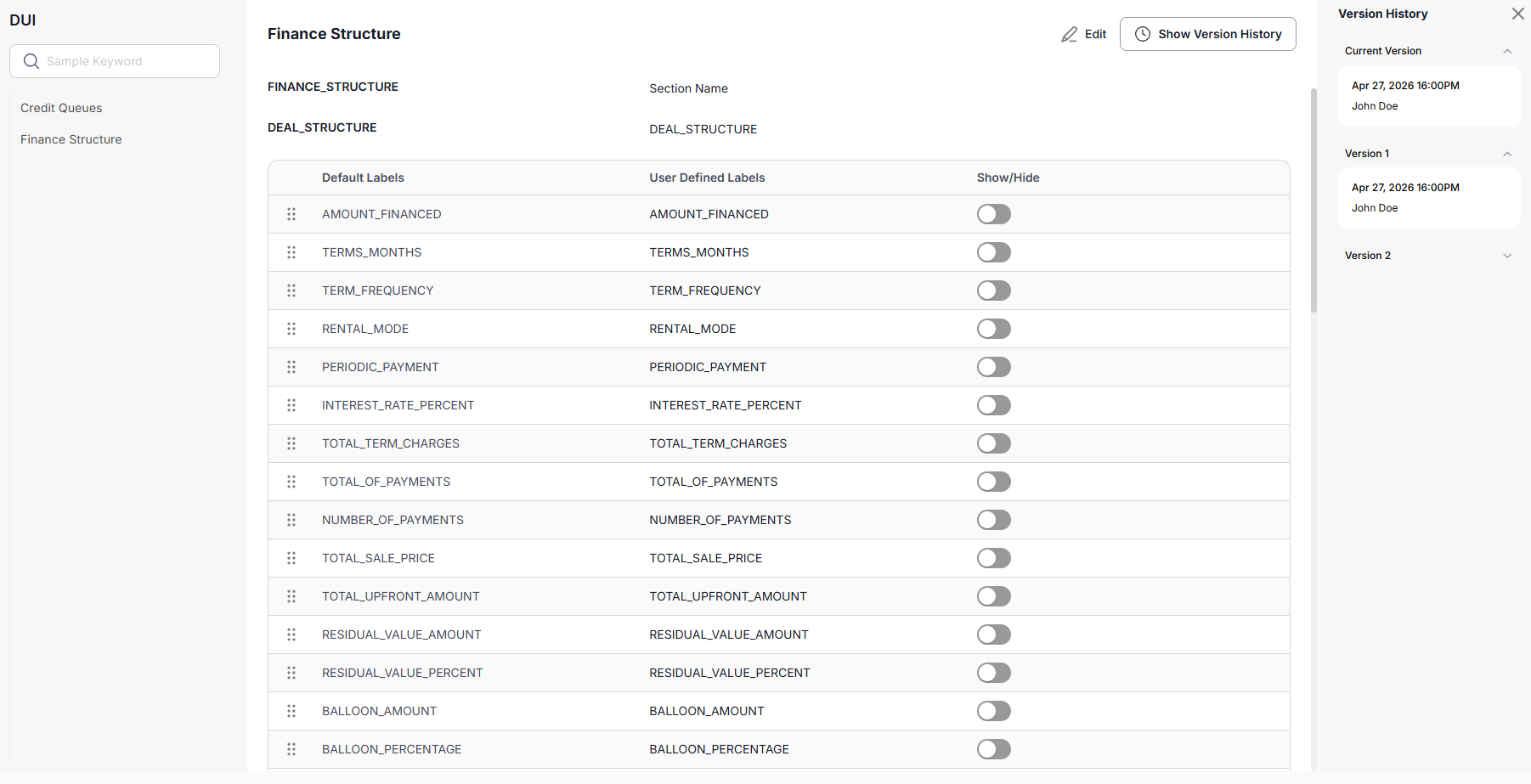
Only screens configured to support the Dynamic User Interface (DUI) can be customized.
Select a Screen
The left navigation pane displays all application screens available for DUI configuration.
Click a screen name to load its configurable fields. The selected screen is displayed in the main window, where all available fields can be reviewed and managed.
Manage Screen Fields
The selected screen displays all configurable fields in a tabular format with the following columns:
- Default Labels – Displays the system defined label for each field.
- User Defined Labels – Displays the customized label assigned to the field, if configured.
- Show/Hide – Controls whether the field is displayed or hidden on the selected screen.
Changes made to field labels and visibility are applied according to the configured DUI settings.
Edit Existing Configuration
Users can modify existing DUI configurations by updating field labels or changing the visibility of individual fields for the selected screen.
Hiding fields may prevent users from viewing important information during application processing. Review configuration changes carefully before saving.
Version History
Click Show Version History to view previous versions of the selected DUI configuration.
The version history enables users to review historical changes made to field labels and visibility settings, supporting configuration tracking and audit requirements.
Version History is provided for reference and audit purposes, allowing administrators to review changes made to DUI configurations over time.