Programs
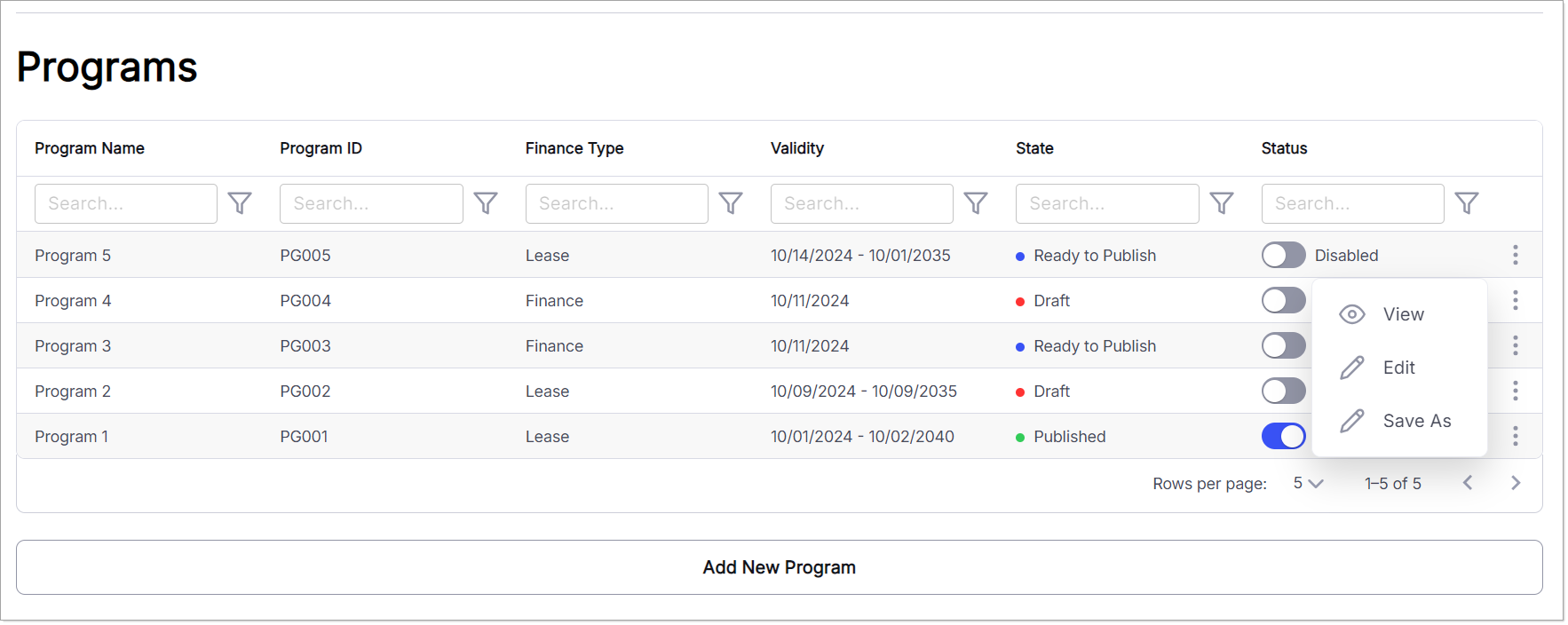
A program refers to a structured set of offerings, rules or plans associated with lenders, including financial products, incentives, promotional offers and specific terms and conditions provided to borrowers. Programs play a critical role in streamlining lending operations by defining clear criteria and benefits for different lending scenarios. Within the system, users can add new programs or edit existing ones. While creating or managing a program, users must input General Information, Financial Parameters, Subsidy, Commission, End Of Term, Dealer’s Details, Asset Details and Associate Charts to ensure a comprehensive and precise configuration tailored to their lending requirements. The Programs screen includes key columns such as Product Name, Product ID, Finance Type, Validity, State and Status to help users organize and track program details efficiently.

Programs
Add New Program
- To add a new Program, click on the Add New Program button.
Add New Program
- A window will open, presenting various tabs, including General, Financial Parameters, Subsidy, Commission, End Of Term, Dealers, Assets and Chart Association. Each tab allows users to input detailed information and configure specific aspects of the program for comprehensive management.

Input Details of New Program
General
The General tab in the program setup includes essential fields like Program Name, Program ID, Validity (valid from and to dates), Finance Type and Lender Name. These fields ensure that each program is uniquely identified and its active period is clearly defined. This allows for accurate configuration of the program’s operational parameters.

Programs General
To manage the General tab of the program setup, follow these steps:
- Input Program Name: Enter the unique name for the program. For example, you can name a program Program 001. Each program name must be unique to avoid duplication.
- Input Program ID: Assign a unique identification number to the program. This ID will serve as a reference for the program across the system whenever needed.
- Input Date From and Input Date To: Define the program’s validity period. The program will remain active within the specified date range. If no Date To is provided, the program stays active indefinitely. Once the system date passes the Date To, the program will expire but remain available for reference.
- Select Option Finance Type: Choose the finance type from the dropdown. Options include Lease or Finance, depending on the nature of the program.
- Select Option Lender Name: Choose a lender from the dropdown list of enabled lenders, which are configured under the Lender Profile section of Lender Configurations.
- Click Save Changes to save the program details and follow any additional system prompts to complete the process.
Financial Parameters
The Financial Parameters tab on the Program window is used to define and manage the financial criteria and settings associated with a specific program. Financial parameters include Rental Frequency, Interest Type, Base Rate Source, Interest Rate Override, Rental Calculation Method, Rental Mode, Rate Conversion Method, RV/Balloon Payment Applicability, RV/Balloon Payment Type, RV/Balloon Payment Calculation Method and RV/Balloon Payment Override option for a program ensuring accurate and comprehensive financial configuration for lending operations.

Programs Financial Parameters To manage the Financial Parameters tab in the program setup, follow these steps:
- Select Option Rental Frequency: Choose the frequency for repayment installments from options like Monthly, Quarterly, Semi-Annual, Annual, Weekly or Fortnightly. Users can select one or multiple frequencies based on the program’s needs.
- Select Option Interest Type: Choose the type of interest associated with the program. For example, selecting Fixed means the interest rate will remain constant throughout the loan term.
- Select Option Base Rate Source (Optional): Choose the source of the base interest rate. Available options include rates like LIBOR, SOFR, SONIA and EURIBOR.
- Select Option Interest Rate Override: Determine whether the interest rate can be overridden for the program by selecting Yes or No.
- Select Option Rental Calculation Method: Choose the method for rental calculation from options like Annuity, Flat, Flat Plus,Equal Principal, etc., to ensure accurate rental computations for the program.
- Select Option Rental Mode: Choose from Advance or Arrear.
- Advance means the first rental (installment) is paid at the time of down payment.
- Arrear means the first rental is paid when the first installment is due.
- Select Option Margin Rate Conversion Method: Choose whether the rate conversion method is Simple or Compounded based on how you want the margin rate to be calculated.
- Select Option RV/Balloon Applicable: Indicate whether the residual value (RV) or balloon payment is applicable to the program by selecting Yes or No.
- Select Option RV/Balloon Type: Choose between RV or Balloon as the type of final payment associated with the program. This drop down will on;y be enabled when RV/Balloon is Applicable.
- Select Option RV/Balloon Calculation Method: Choose the calculation method for RV or balloon payments from options like Asset Cost Including Tax or Asset Cost Excluding Tax. This drop down will on;y be enabled when RV/Balloon is Applicable.
- Select Option RV/Balloon Override: Choose whether RV or balloon payments can be overridden by selecting Yes or No. This drop down will on;y be enabled when RV/Balloon is Applicable.
- Click Save Changes and follow any system prompts to save the financial parameters for the program.
Subsidy
Subsidy tab is used to configure and manage any subsidies associated with a specific program. This includes details about financial assistance or incentives provided to reduce the cost for borrowers, such as government grants, manufacturer discounts or other types of financial support. This tab includes options to define Calculation Methods, Amortization Method and Tax Amortization for respective subsidy through corresponding drop down lists. Additionally, users can specify whether the subsidy can be overridden or not. These settings ensure that subsidies are accurately applied and managed, providing financial assistance or incentives that reduce costs for borrowers in alignment with program guidelines.

Programs Subsidy
To configure and manage subsidies for a program, follow these steps in the Subsidy tab:
- Select Option Calculation Method: Choose the method used to calculate the subsidy. Available options include Target Base Rate, Percentage from Dealer, Percentage from Manufacturer or Adjusted Customer Rate. This ensures the correct method is applied based on the program’s structure.
- Select Option Amortization Method: Choose the amortization method for the subsidy from options such as Annuity – Actual Number of Days, Straight Line, Straight Line Pro Rata or Straight Line for Actual Number of Days.
- Select Option Tax Amortization: Choose whether to include Tax Amortization when configuring the subsidy for the program.
- Select Option Subsidy Override: Decide if the subsidy can be overridden by selecting Yes or No. If enabled, this allows adjustments to the subsidy for specific scenarios.
- Chart Association: The Chart Association for the subsidy will remain disabled until all mandatory fields in the Subsidy tab are completed. Only subsidies with a selected calculation method will be available for chart association. If no method is chosen, the system will prompt the user to configure the Calculation Method before associating the subsidy with the chart.
- Click Save Changes and follow system prompts to save the subsidy configuration for the program.
Commission
Commission tab is used to configure and manage any commissions associated with a specific program. Users can define the commission structure, including the commission type, amortization method and specify whether the commission can be overridden or not. This tab ensures that all commission-related details are accurately recorded and maintained within the system.

Programs Commission
To configure and manage commissions for a program, follow these steps in the Commission tab:
- Select Option Commission Type: Choose the type of commission that will be applied to the program. This determines how the commission will be calculated.
- Select Option Amortization Method: Choose the amortization method for the commission from options such as Annuity – Actual Number of Days, Straight Line, Straight Line Pro Rata or Straight Line for Actual Number of Days.
- Select Option Commission Override: Decide if the commission can be overridden by selecting Yes or No. If enabled, this allows adjustments to the commission for specific circumstances.
- Chart Association: The Chart Association for the commission will remain disabled until all mandatory fields in the Commission tab are completed. The system will display a tooltip prompting the user to complete the commission configurations before associating a commission chart with the program.
- Click Save Changes and follow the system’s prompts to save the commission configuration for the program.
End of Term
End of Term tab is used to configure and manage options and conditions that apply at the end of a financing term. This tab allows users to define end-of-term scenarios, such as purchase option applicable or not. By setting these parameters, users can ensure that all end of term details are clearly outlined and managed within the system. End of term details defined here for a program are available as business criteria in the charts.

Programs End of Term
To configure and manage end-of-term options for a program, follow these steps:
- Select Option Purchase Option Applicable: Choose whether the purchase option is applicable by selecting Yes or No from the dropdown. This determines if the borrower has the option to purchase the asset at the end of the financing term.
- Select Option Purchase Option Type: If Yes is selected for the purchase option, the Purchase Option Type dropdown becomes enabled. Select the appropriate option that defines the type of purchase arrangement.
- Click Save Changes and follow the system’s instructions to save the record.
Dealers
Dealers tab manages and associates dealers with a specific program. This tab allows users to select and link dealers who are authorized to offer the program, ensuring that only eligible dealers can access and utilize the program’s features and benefits. By configuring the Dealers tab, users can maintain control over which dealers participate in each program, enhancing the program’s management and implementation. Only associated dealers are able to access respective program.

Programs Dealers
- A search bar is available on top of each column to filter the record on basis of search criteria.
- Dealer Name refers to the name of dealer.
- Dealer ID denotes unique identification number assigned to respective dealer. This dealer ID is unique for each record and can be used as a reference for respective record where and when required.
- User can Check Mark √ all dealers or individual dealer to associate them with program.
- Click on Save Changes and follow system’s instructions to save the record.
Assets
Assets tab is used to manage and associate specific assets with a particular program. This tab allows users to select and link assets that are eligible for the program, ensuring that only designated assets can be included under the program’s terms and benefits. User can only associate the already configured assets with program. On Assets tab users can control which assets are part of the program, facilitating accurate and efficient program management and implementation. Screen displays the list of assets which are already configured in system under Make/Model/Trim details, Description and Code columns.

Programs Assets
- A search bar is available on top of each column to filter the record on basis of search criteria.
- Make/Model/Trim of an asset are represented in tree form. Each record has a separate row so that user can associate respective record independently.
- Description ascertains the description of respective make/mode/trim of an asset.
- Code denotes unique code assigned to respective make/model/trim of an asset. This code is unique for each record and can be used as a reference for respective record where and when required.
- User can Check Mark √ all assets or individual asset to associate them with program.
- Click on Save Changes and follow system’s instructions to save the record.
Charts Association
Charts Association is used to associate various charts with a specific program. This tab allows users to link already defined charts in system e.g. charts for base rate, margin rate, RV/balloon, down payment, subsidy and commission to the program, ensuring that the correct calculation methods and parameters are applied. By configuring the Charts Association tab, users can customize the program’s financial calculations and benefits, making sure they align with the program’s objectives and rules.

Programs Charts Association
To configure and manage charts, follow these steps:
- Use the available dropdown lists to select and associate the relevant charts with the program.
- Attaching at least one Interest Rate chart is mandatory for the program to be published. Users also have the option to attach both types of interest rate charts.
- Click Save Changes and follow the system’s instructions to save the record.
Edit Existing Program
Existing programs are displayed in a tabular format for easy access and management. Users can utilize the Search Bar to filter and locate specific programs. The ellipsis menu next to each program provides options to View, Edit or Save as a new program. Key columns on the screen include Program Name, Program ID, Finance Type, Validity, State (draft, ready to publish or published statuses) and Status (indicating whether the program is Enabled or Disabled). This layout helps users efficiently organize and manage program details.
Programs
- A search bar is available on top of each column to filter the record on basis of search criteria.
- Product Name refers to the name given to to respective program. Product name is unique for each program.
- Product ID denotes unique identification number assigned to respective program. This product ID is unique for each record and can be used as a reference for respective record where and when required.
- Finance Type refers to the finance type i.e. either lease or finance associated with respective program.
- Validity tells us about the last valid date for respective program.
- State refers to the current state of program e.g. a program can be in draft state, ready to publish or published.
- Records with Status Enabled will be available for further use whereas record with Status Disabled will not be available for further use in future. Status of a record can only be changed when it is in published state.