Funding Queue
The Funding Queue is the primary workspace for funding analysts to review and process incoming funding applications. It displays all submitted funding applications that are awaiting evaluation or are already submitted searchable and sortable queue, enabling users to efficiently identify, assign, and open funding applications for review. From this screen, users can filter applications by status, search for specific records, and navigate through queued applications to begin the funding review process.
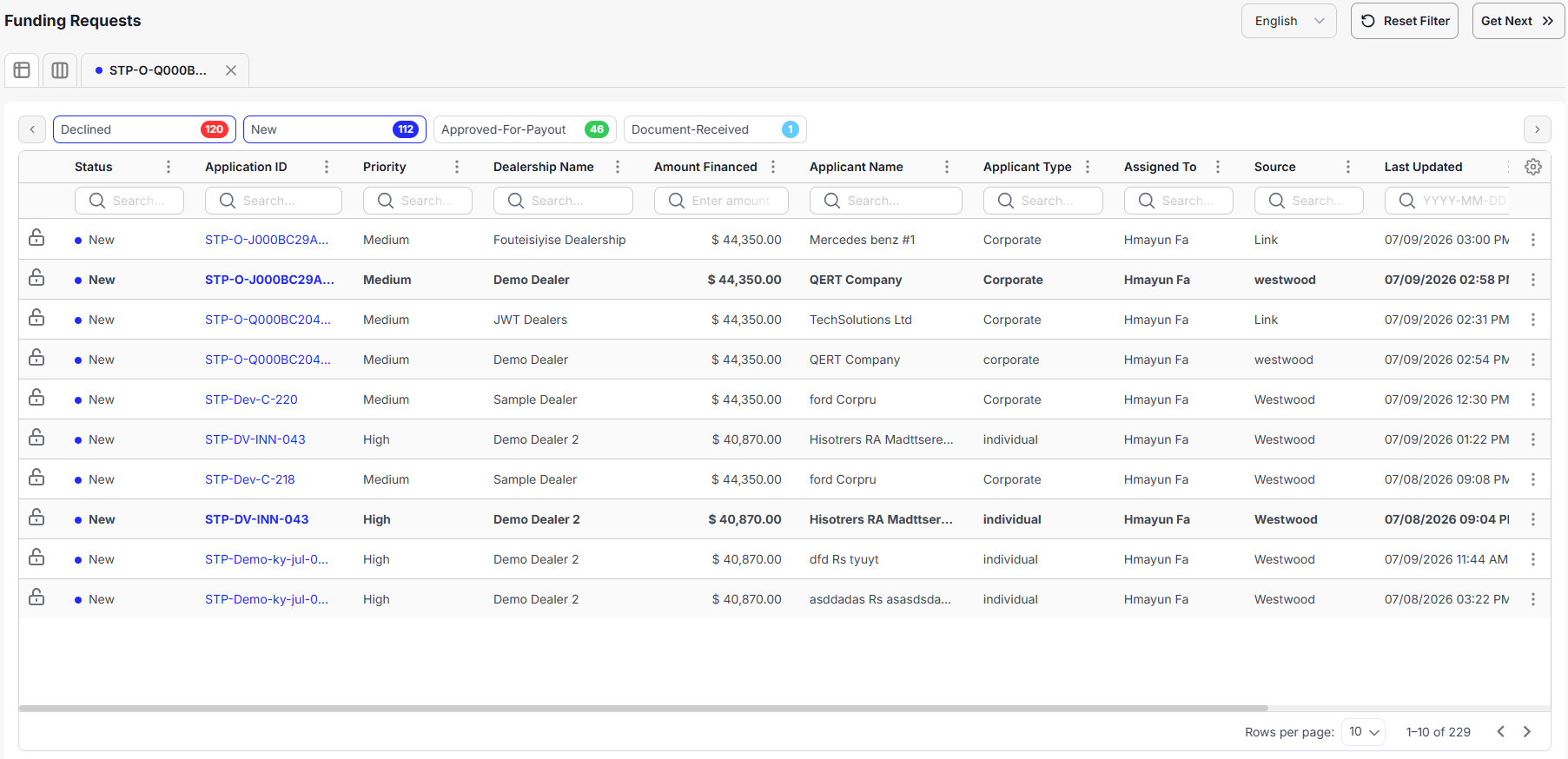
The Funding Queue only lists funding applications. Open the required application from the queue to review its details and record a funding decision.
View Applications
The Funding Queue supports both List View allowing users to choose the layout that best suits their preference for reviewing funding applications.
The List View displays applications in a searchable and sortable table, making it suitable for reviewing large volumes of applications.
Language Selection
Use the Language drop-down list to select the preferred language for the current session. The selected language is applied throughout the funding application review process.
Reset Filters
Click Reset Filters to remove all applied filters and restore the queue to its default view.
Get Next
Get Next button opens the Next Application according to the defined criteria, It check the priority of the application. The application that has high priority, it open those application first than move the medium and low priorities application
Using Get Next helps analysts process queued applications more efficiently by minimizing navigation between screens.
Filter Applications
Applications can be filtered by their current processing status to quickly locate relevant records.
Available status filters include:
- New – Displays newly received applications awaiting review.
- Duplicate – Displays applications identified as potential duplicates.
- Declined – Displays applications that have been declined.
- Conditioned – Displays applications approved subject to one or more conditions.
- Approved – Displays applications that have been approved.
- Conditional Approval - Displays applications that have conditional approval.
- Referred - Displays applications that have been referred.
- Approved Recommended - Displays application that been recommended for approval.
- Decline Recommended - Displays application that have been recommended to be declined.
Search Applications
A search box is available above each column, allowing users to quickly locate applications using specific values.
Applications can be searched using the following columns:
- Status
- Application ID
- Priority
- Dealership Name
- Amount Financed
- Applicant Name
- Applicant Type
- Assigned To
- Source
- Last Updated
- Request Time
- Reference Number
Sort Applications
Each column header includes a sorting option that allows records to be displayed in either:
- Ascending order
- Descending order
Sorting helps organize applications based on the selected column values.
Manage Applications
Each application includes a vertical Ellipsis (⋮) menu that provides quick access to the following actions:
- View – Opens the selected funding application.
- Assign to Me – Assigns the application to the current user.
- Assign to a Member – Assigns the application to another team member.
Open a Funding Application
To begin reviewing a funding application:
- Locate the required application in the queue.
- Click on the Application ID to open it.
Alternatively:
- Select the desire application.
- Click on the Ellipsis against the required application
- Click on View option
Ensure the correct application has been selected before proceeding with the funding review, as all subsequent analysis and decisioning activities are performed on the opened application.