Draft a Deal
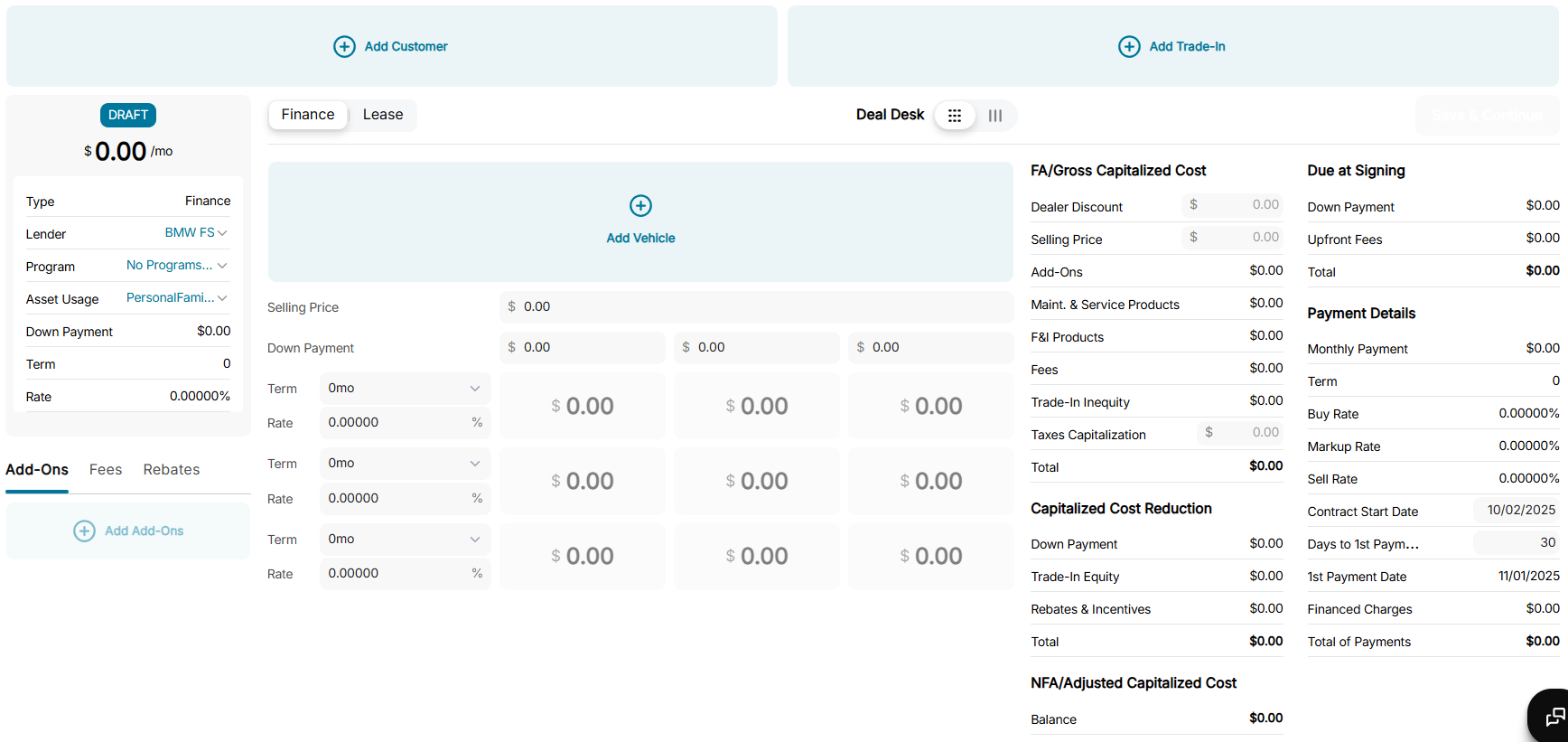
Draft a deal for the customer, in the following 5 simple steps:
- Add Customer, Asset, and Trade-in
- Add Add-ons
- Specify Lender and Deal Type
- Populate Nine View Box
- Select, Compare, and Save Deal
After the deal is drafted, it will show up in the Deals section with the tag Draft.
In addition, there are a few other features available throughout the deal creation process, to learn more about these features, see Additional Features
Add Customer, Asset, and Trade-in
To create a draft deal, the first step is to add customer, asset, and trade-in (optional).
Once customer details are added and the required asset is selected, the Nine Box View will populate, where dealer can modify the Down Payment, Term, Rate, and Balloon amounts to create nine different options for the customer to choose from.
Add Customer
To add a customer, click Add Customer, this will open the Enter Customer’s Details popup:
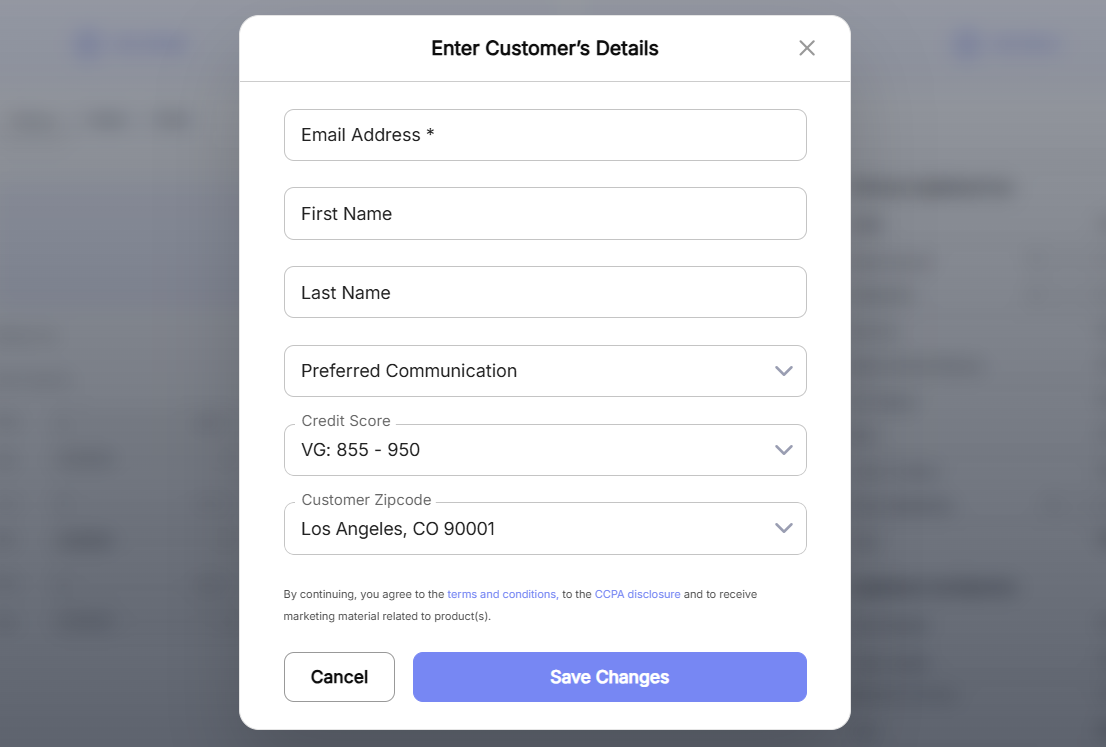
In the Enter Customer’s Details popup:
- Email Address: Enter customer’s email address
- First Name: Enter the first name
- Last Name: Enter the last name
- Preferred Communication: Select a preferred communication method (mobile, email, or sms)
- Credit Score: Select a credit score
- Customer Zipcode: Enter the zip code
- Save Changes: Click Save Changes
The credit score ratings available for selection are specified by the Dealer Admin and Lender. The ranges may very depending on the configuration.
When a new customer is added, with preferred communication method as email, they will receive an email notifying them about the deal.
Add Asset
To add an asset, click Add Vehicle, this will open a dropdown menu with three fields:
- Choose Vehicle: Enter a vehicle search and selection screen
- Search by VIN: Provide a VIN directly to select the desired vehicle directly
- Search by Stock: Provide a stock number to select the desired vehicle directly
In the case of VIN and Stock number, a number can directly be provided and once Continue is clicked the desired vehicle if available will be selected and populated directly.
If Choose Vehicle is clicked, it will open the Asset Selection popup:
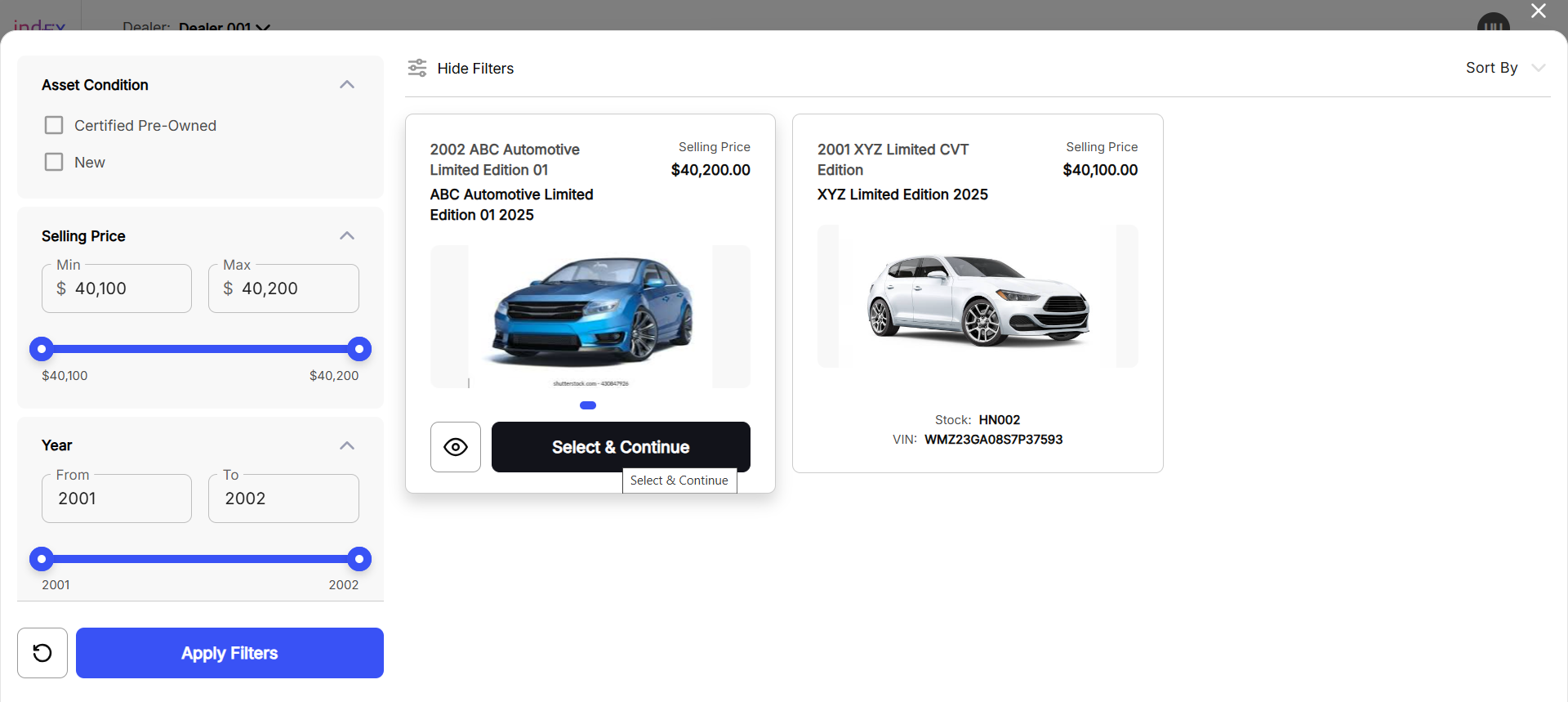
In the Asset Selection popup:
- Apply filter to search the desired asset
- Click Select & Continue on the desired asset
Selecting an asset will instantly populate all the monetary details of the asset in the Nine Box View.
The filters available in order to search the desired asset include:
- Asset Condition: Filters vehicles based on their status or history.
- Certified Pre-Owned: Previously owned vehicles inspected and certified by the manufacturer or dealer.
- Pre-Owned: Used vehicles sold as-is or with limited warranty, not manufacturer-certified.
- New: Brand-new, untitled vehicles that have not been previously owned or registered.
- Selling Price: Allows filtering by the vehicle’s listed price range.
- Minimum: The lowest selling price threshold for search results.
- Maximum: The highest selling price threshold for search results.
- Year: Filters vehicles based on their model year.
- From: The earliest model year to include in search results.
- To: The latest model year to include in search results.
- Make/Model/Trim: Enables search by the vehicle manufacturer, specific model, or trim level.
- VIN Number: Search by the unique 17-character Vehicle Identification Number assigned to each vehicle.
- Stock Number: Search using the dealership’s internal inventory or reference number for a specific vehicle.
Add Trade-in
To add a Trade-in, click Add Trade-in, this will open the Trade-in popup:

In the Trade-in popup:
- Provide the Year, Make, Model, Trim (optional), Current Mileage, VIN (optional), and Trade-in Amount
- Specify the Condition of the Vehicle
- Specify Is asset titled in customer’s name?
- Specify Does the customer have lease/loan balance?
- Upload trade-in asset images
If Yes is selected for Does the customer have lease/loan balance?, you need to populate the following additional fields:
- Contract No. / Credit Reference
- Lender Name, Address, and Phone Number
- Payment Type and Payoff Amount (within 10 days)
In the Trade-in popup, the fields mentioned above represent:
- Year: The model year of the vehicle as designated by the manufacturer.
- Make: The vehicle’s manufacturer or brand.
- Model: The specific name or type of vehicle produced by the manufacturer.
- Trim: The specific version or configuration of the model that includes certain features, options, or styling.
- Current Mileage (Odometer): The total number of miles the vehicle has been driven, as shown on the odometer at the time of trade-in or valuation.
- VIN: Vehicle Identification Number — a unique 17-character code that identifies the vehicle’s make, model, year, and production details.
- Condition: The overall physical and mechanical state of the vehicle.
- Trade-In Amount: The appraised or offered value for the customer’s current vehicle.
- Asset Titled in Customer’s Name: Indicates whether the vehicle being traded or financed is legally owned and registered in the customer’s name.
- Lease/Loan Balance: The remaining amount owed on the customer’s existing vehicle financing or lease agreement.
Add Add-ons
The Add-ons section is disabled until an asset is selected against which the add-on is going to be added.
To add Add-ons, click Add Add-ons, this will open the Add Products popup:

You might see additional option, other than Add-ons. These options are subject to availability, selected asset, Lender and Dealer Admin configurations. Some of the options might not be available or show up as empty.
In the Trade-in popup:
- Filter the desired products
- Select what you want to add
- Click Continue
You can also create and add new Add-ons. To create a new Add-on, click Create New Add-on, this will open the Create New Add-on popup:

In the Create New Add-on popup:
- Enter the Product Name
- Add a Description
- Select an add-on Category
- Select the Vehicle Condition
- Enter a Part No (optional)
- Add a Supplier
- Enter the Price of the add-on
- Provide the add-on’s Brochure URL (optional)
- Provide the add-on’s Video URL (optional)
- Upload add-ons images
- Click Save Add-on
Installed Mode and Compatible Vehicles options are preselected and disabled by default. These defaults are subject to availability, selected asset, Lender and Dealer Admin configurations.
Specify Lender and Deal Type
The third step is to specify Lender and Deal Type (finance, lease, or cash).

To specify a Lender, on the left side of the Deal Desk, inside the Draft card:
- Click the Lender dropdown
- Select the desired lender
The availability of multiple lenders is subject to availability based on the selected asset, Lender, and Dealer Admin configuration.
To specify a Deal Type, click Finance, Lease, or Cash.
Switching between Finance and Lease will instantly repopulate the Nine Box View with amounts based on your selection.
Based on specified configurations of the organization or the dealership, an additional option Combined Tax Rate might be available:
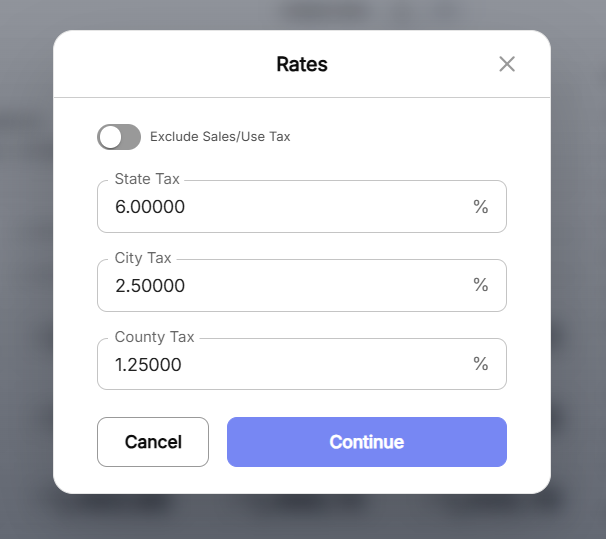
This feature enables you to:
- Enable or Disable Sales/Use Tax
- Specify/Edit Sales Tax percentage
- Specify/Edit City Tax percentage
- Specify/Edit County Tax percentage
Populate Nine View Box
The forth step is to modify and populate Nine View Box. In Nine Box View, dealers can compare financing scenarios side by side.

Dealer can modify the following to create nine different options for the customer to choose from.
For Finance:
- Selling Price: The negotiated purchase price of the vehicle before taxes, fees, and optional products are added.
- Down Payment: The upfront amount paid by the buyer.
- Term: The duration of the finance agreement.
- Rate: The Annual Percentage Rate (APR) applied to the loan.
For Lease:
- Selling Price: The negotiated price of the vehicle.
- Down Payment: The upfront payment made by the buyer.
- Term: The length of the lease agreement.
- Miles: The total mileage allowance for the lease period.
- Rate: The lease money factor or equivalent interest rate used to determine the finance charge on the lease.
- RV: The projected value of the vehicle at the end of the lease term.
Once an options from the Nine View Box is selected — on the right side of the Deal Desk — dealers can view a detailed breakdown for:
- FA/Gross Capitalized Cost: The total value being financed or leased before any reductions; includes the vehicle price, add-ons, F&I products, fees, and applicable taxes.
- Due at Signing: The amount the customer must pay upfront at the start of the deal.
- Capitalized Cost Reduction: The total of any amounts that reduce the gross capitalized cost.
- NFA/Adjusted Capitalized Cost: The net amount being financed or leased after all reductions are applied; the basis for calculating monthly payments.
- Payment Details: A full breakdown of the payment.
Select, Compare, and Save Deal
This is the final step. Dealer can select a deal option from the Nine View Box and save the deal, which will show up on the Deal dashboard under Deals for further processing.
Lane also allows you to compare multiple deals for multiple assets to get the best possible deal for both you and the customer. To add multiple assets for comparison:
- Select a deal from the Nine View Box
- Click the icon highlighted in the image below

Clicking the icon highlighted above will open the Comparison View:

To add assets for comparison, click Add Vehicle:

Once the desired deal is selected, to save the deal for further processing, click Save & Continue:
In order to save and continue the deal, you must add a customer first, if one hasn’t been added already.
Customer email cannot be changed after a draft deal is saved.

Additional Features
The following additional features are available throughout the Deal Desk in the deal creation process:
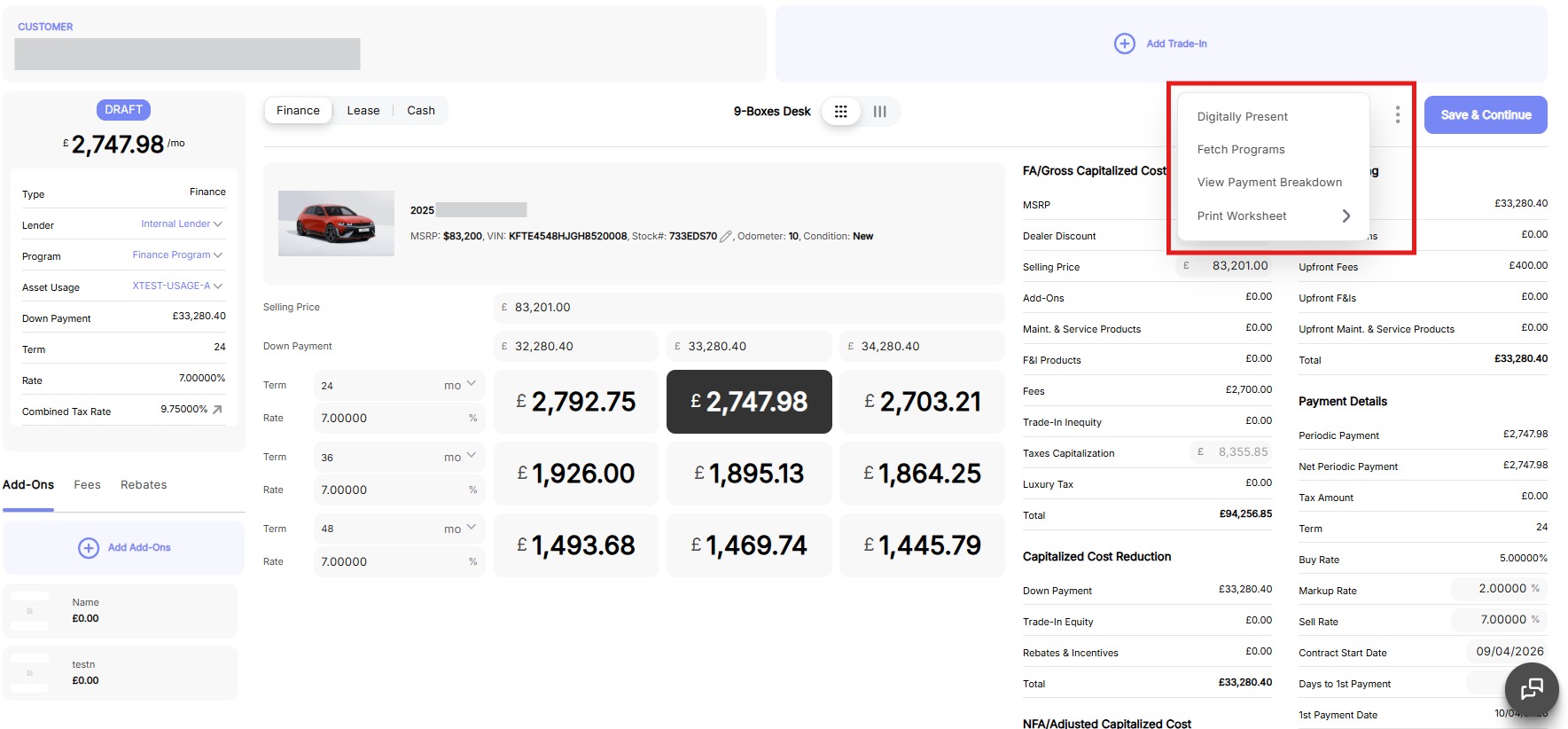
- Digitally Present: The digital presences of the asset
- Fetch Programs: Fetch all the programs associated with the asset
- View Payment Breakdown: View the full payment breakdown of the asset
- Print Worksheet: worksheet related features
- Print: Print the worksheet directly
- Download: Download the worksheet
- Send to Customer: Send the worksheet directly to the customer
- View History: View the history of the worksheet