Home
The Home dashboard allows users to get a holistic view of Lane and carry out task directly from the dashboard:
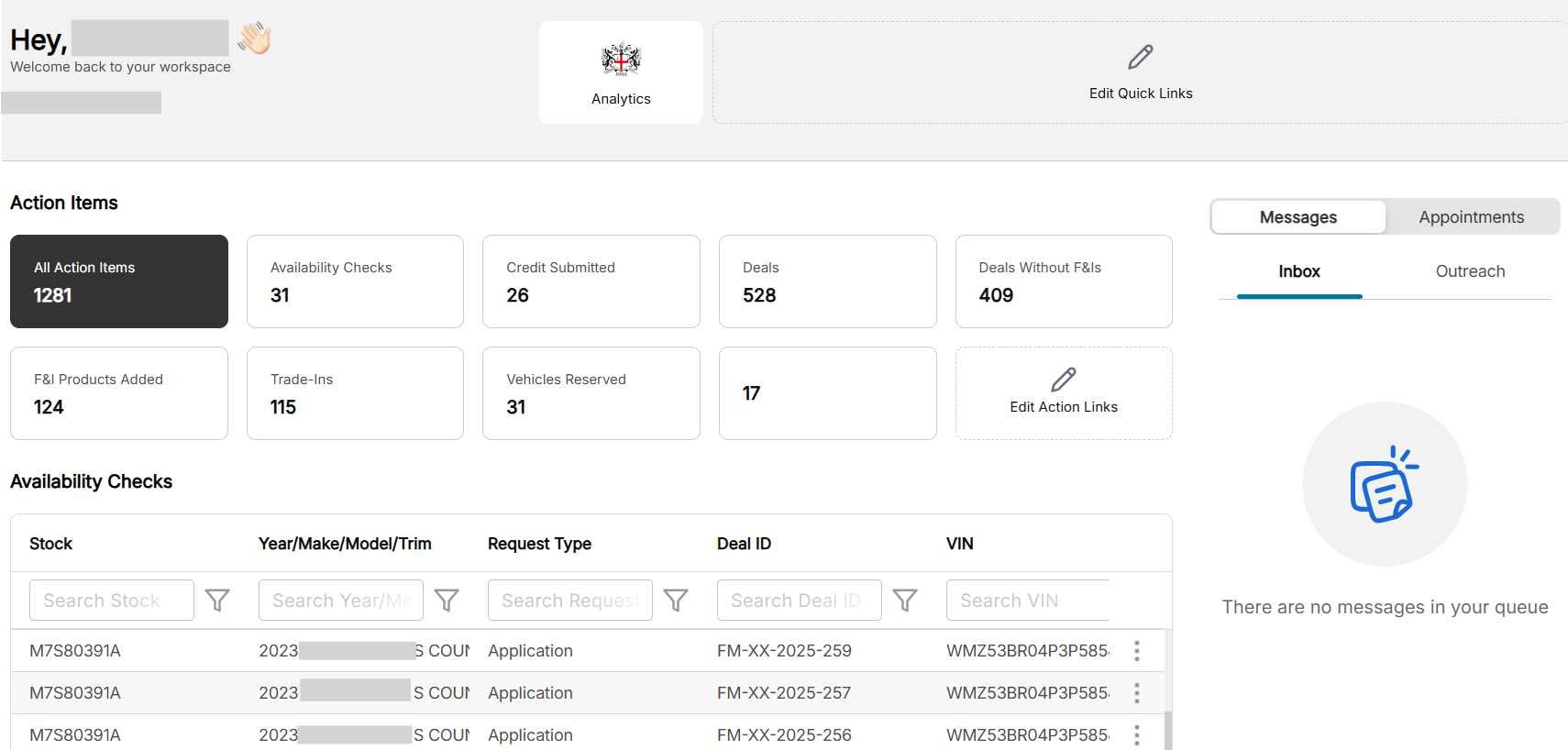
The home dashboard consists of:
- Quick Links: Edit the quick link buttons for redirecting the required user dashboards and other sections in Lane.
- Messages & Appointments: Check inbox, send/receive messages, and see appointments.
- Action Items: Specify which tables/action items you want to see in the dashboard.
By default the option All Action Items is selected.
- Availability Checks: Track and mark requested assets as available or unavailable.
- Active Shoppers: See the shoppers that are currently active on the app.
- Credit Applications Submitted: Evaluate/Edit and assess the credit applications that are submitted.
- Deals: Evaluate/Edit all deals in a unified table.
- Deals Without F&I Products: Evaluate/Edit the deals created without any F&I products added to them and contact customer if required.
- F&I Products Added: Evaluate/Edit the deals created with F&I products added to them and contact customer if required.
- Trade-Ins: Evaluate/Edit the trade-in offers.
- Vehicle Reserved: Track and mark reserved vehicles as available or unavailable.
Quick Links
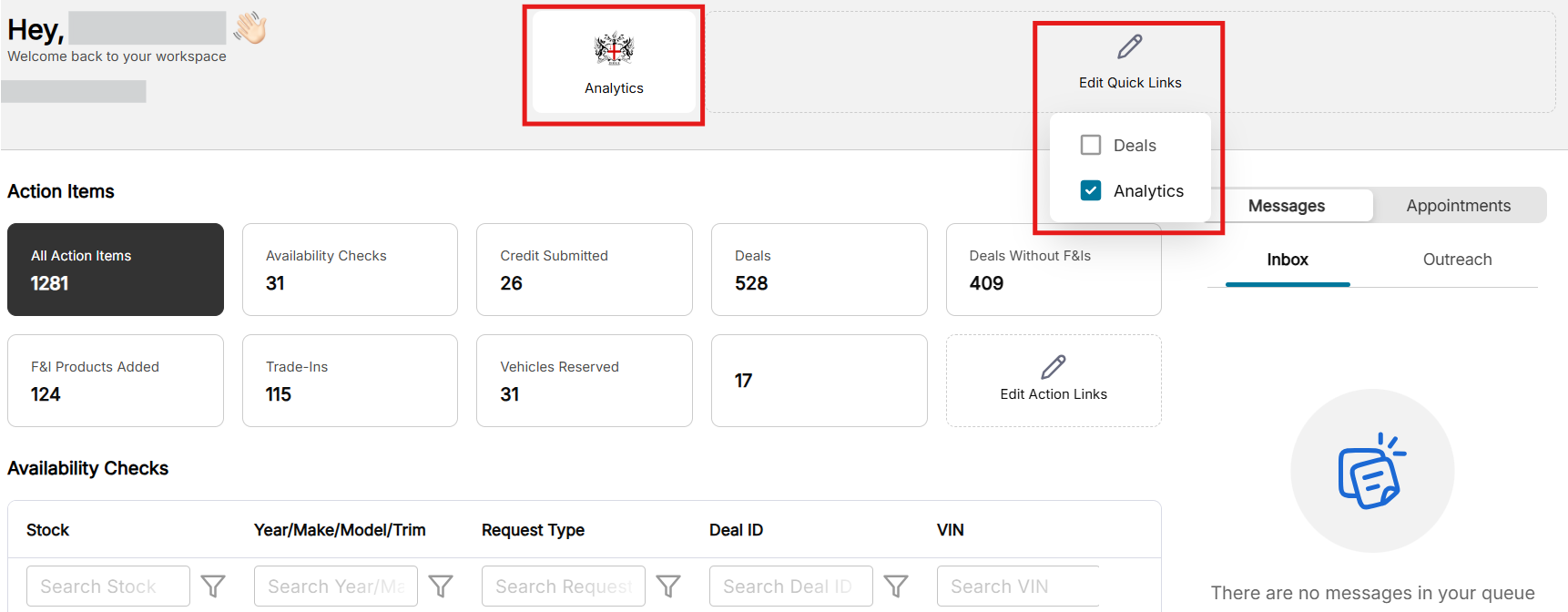
Quick Links allow you to specify and create direct button/cards that will redirect you the desired section/screen within Lane.
To edit quick links, click Edit Quick Links and check the desired options:
Messages & Appointments
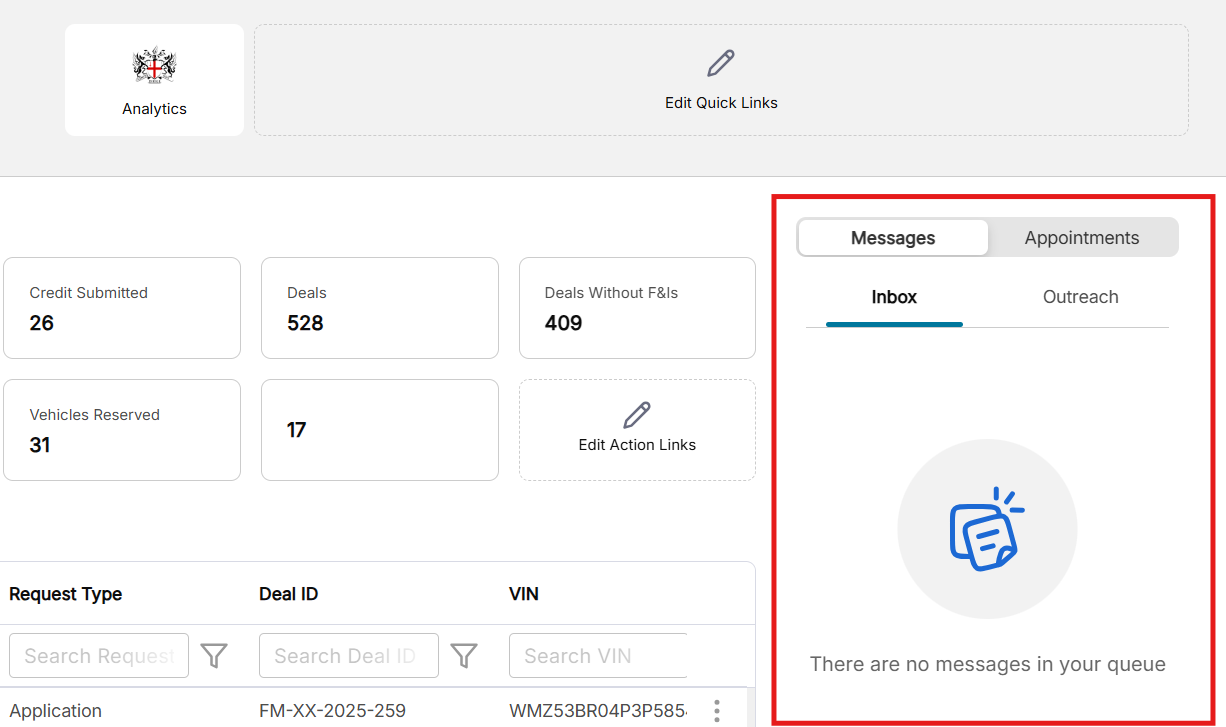
Messages & Appointments allows you to directly check your inbox for messages from customers, and keep track of your outreach messages. You can also check the scheduled appointments directly in this section:
Action Items
The Action Items section allows you to filter out the desired category of deals:
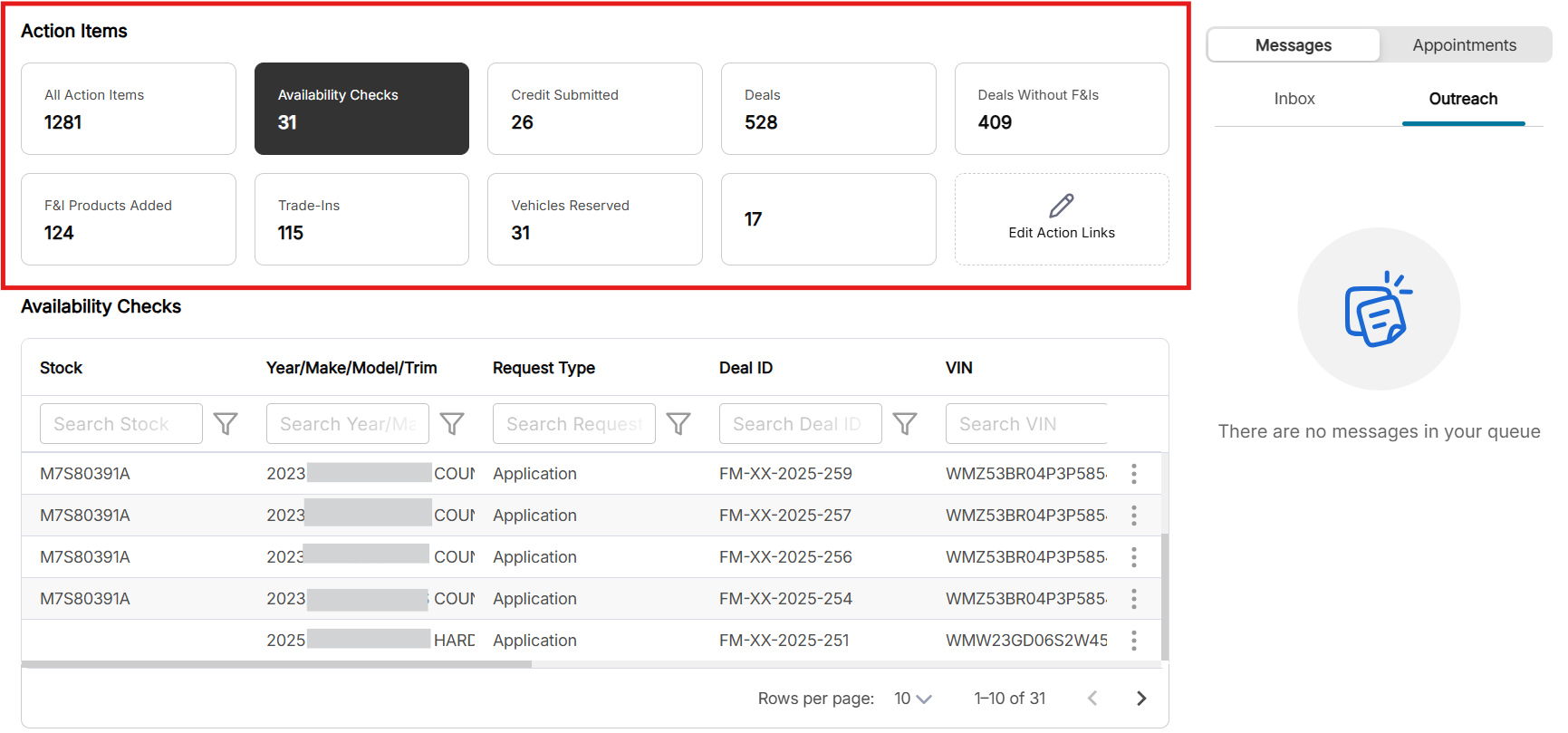
The following options are available for selection in Action Items:
- All Action Items: Select to see All Action Items.
By default the option All Action Items is selected.
- Availability Checks: Select to see Availability Checks only.
- Credit Submitted: : Select to see Credit Submitted only.
- Deals: Select to see only the Deals table.
- Deals without F&I: Select to see Deals without F&I only.
- F&I Products Added: Select to see F&I Products Added deals only.
- Trade-Ins: Select to see only the deals with Trade-Ins.
- Vehicles Reserved: Select to see only the deals requiring Vehicles Reserved.
- Active Shoppers: Select to see Active Shoppers only.
Availability Checks
Availability Checks allows you to mark assets as available or unavailable.
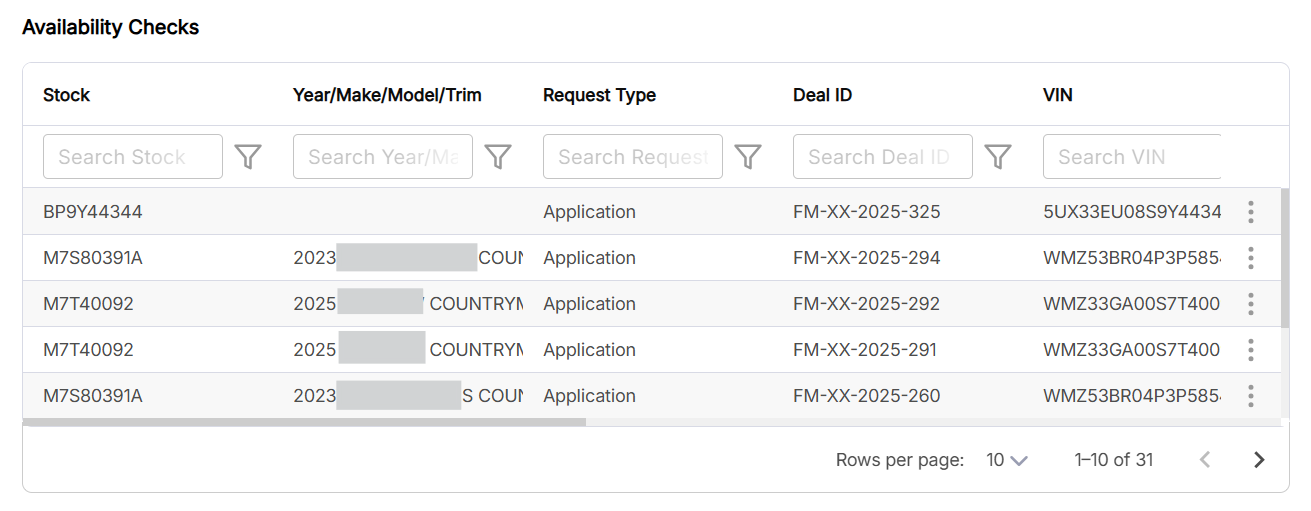
The Availability Check table consists of the following fields for each deal:
- Stock: The stock number of the asset.
- Year/Make/Model/Trim: Year, make, model, and trim of the asset.
- Request Type: The request type, application or quotation.
- Deal ID: The ID of the deal under consideration.
- VIN: The VIN number of the asset.
- First Name: The first name of the customer.
- Last Name: The last name of the customer.
- Deal Type: The type of deal, lease or finance.
- Financed Amount: The amount which is financed.
- Program: The dealer/lender program.
- Creation Date: The date on which the deal was created.
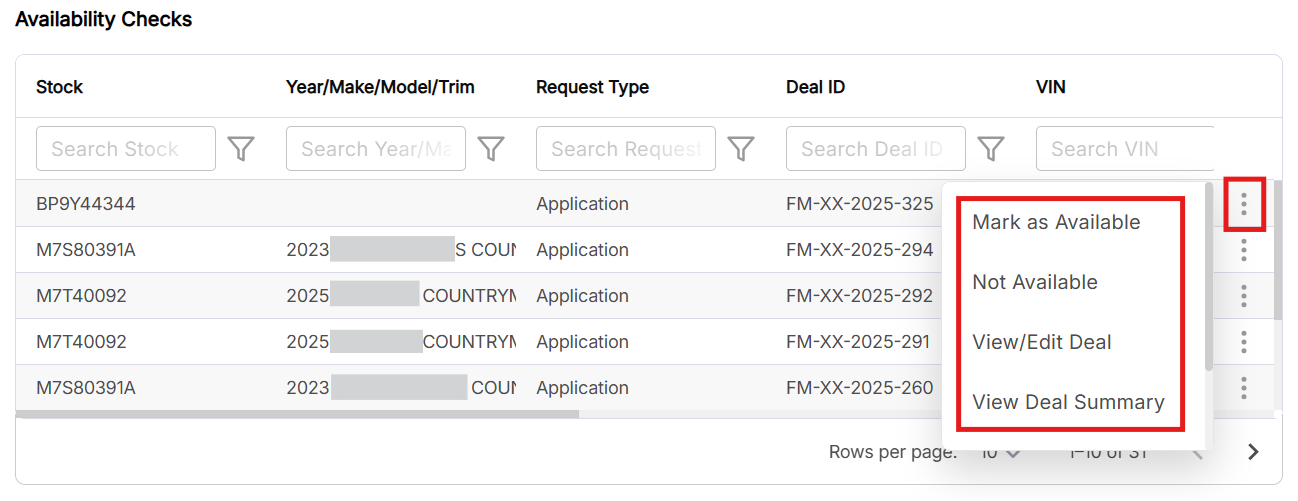
To Mark as Available, Not Available, View/Edit Deal, View Deal Summary, Contact Customer, and Cancel Deal, click the icon and select the desired option:
Active Shoppers
Active Shoppers allows you to keep track of the active customers who are browsing and creating draft deals along with past customers who did not complete their purchase. You can also keep track of the exact section of their purchase journey they are in:
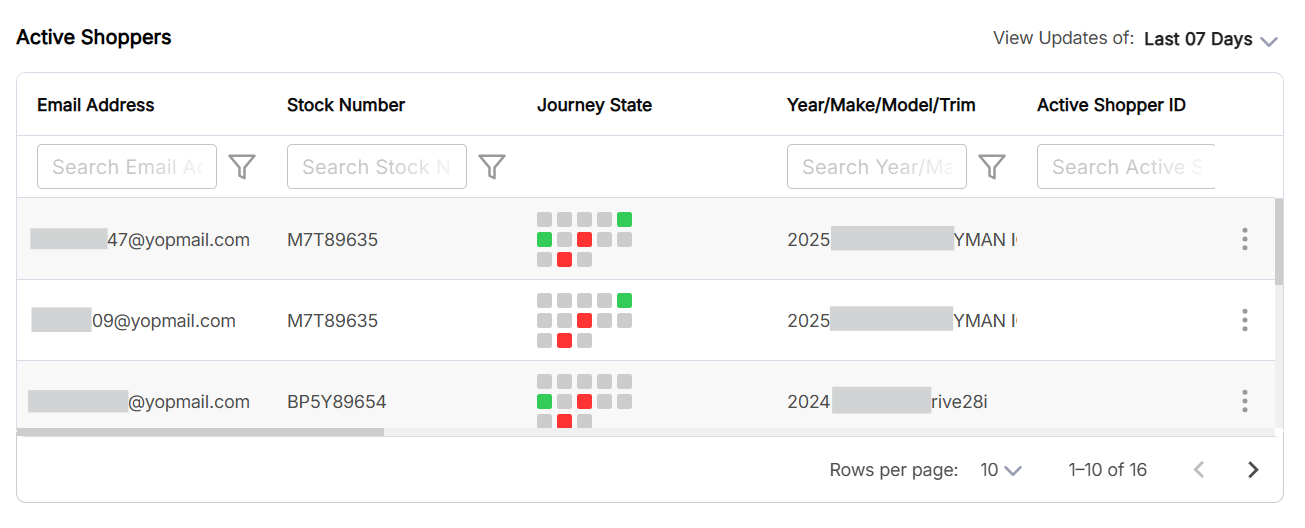
The Active Shoppers table consists of the following fields for each shopper:
- Email Address: The email address of the active shopper.
- Stock Number: The stock number of the asset.
- Journey state: The point of buyer journey where the active user is currently at.
- Year/Make/Model/Trim: Year, make, model, and trim of the asset.
- Active Shopper ID: The ID of the active shopper.
- Active Shopper Status: The active status of the shopper, authenticated or not.
By default, Active Shoppers shows active users from the past 7 days. The further back you go, the more likely it is to see the Active Shopper Status as Offline.
- Customer Status: The status of the customer, currently online or offline.
- First Name: The first name of the customer.
- Last Name: The last name of the customer.
- Contact Number: The contact number of the customer.
- Preferred Communication: The reported preferred communication method of the customer, email, phone, or sms.
- VIN: The VIN number of the asset.
- Creation Date: The date on which the active shopper entry was created.
- Last Updated: The date on which the active shopper entry was last updated.
- Source: The source from which the entry was recorded such as Dealer Portal.
- Deal Status: The current status of the deal such as Submitted, Awaiting More.
- Deal ID: The ID of the deal.
You can view the summary of the deal that was created or abandoned by the customer or go directly to the deal desk to edit the deal and send it to the customer for outreach. You can also contact the customer if required. To View Summary, go to Deal Desk, or Contact Customer, click the icon and select the desired option:

Credit Applications Submitted
Track the deals for which the credit application has been submitted:
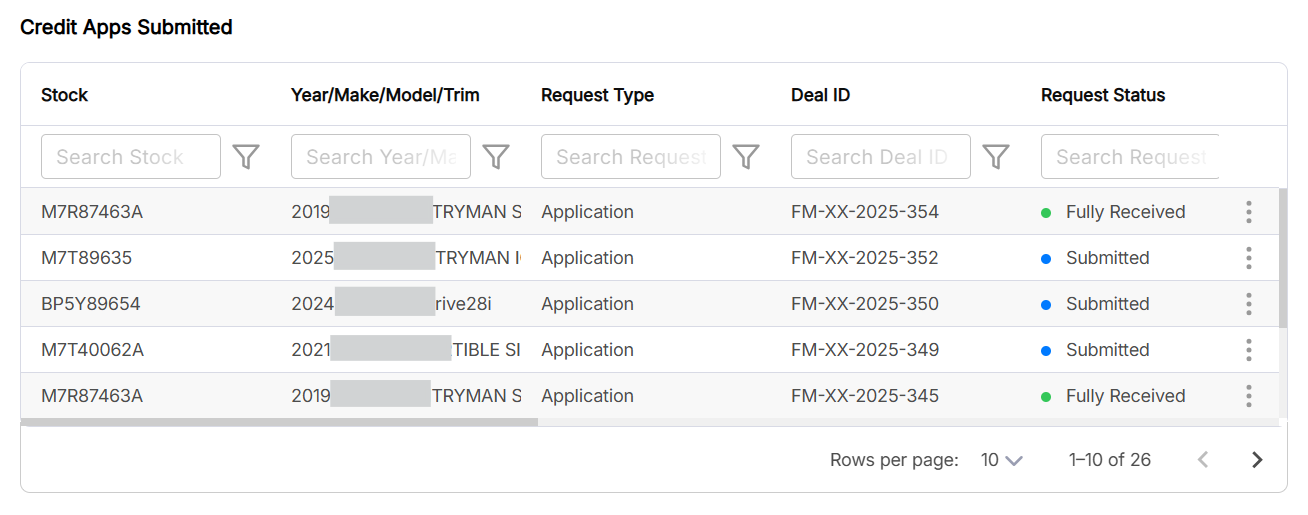
The Credit Applications Submitted table consists of the following fields for each deal:
- Stock: The stock number of the asset.
- Year/Make/Model/Trim: Year, make, model, and trim of the asset.
- Request Type: The request type, application or quotation.
- Deal ID: The ID of the deal.
- Request Status: The status of the request such as Submitted, Awaiting More, Fully Received.
- VIN: The VIN number of the asset.
- First Name: The first name of the customer.
- Last Name: The last name of the customer.
- Deal Type: The type of deal, lease or finance.
- Financed Amount: The amount which is financed.
- Program: The dealer/lender program.
- Creation Date: The date on which the deal was created.
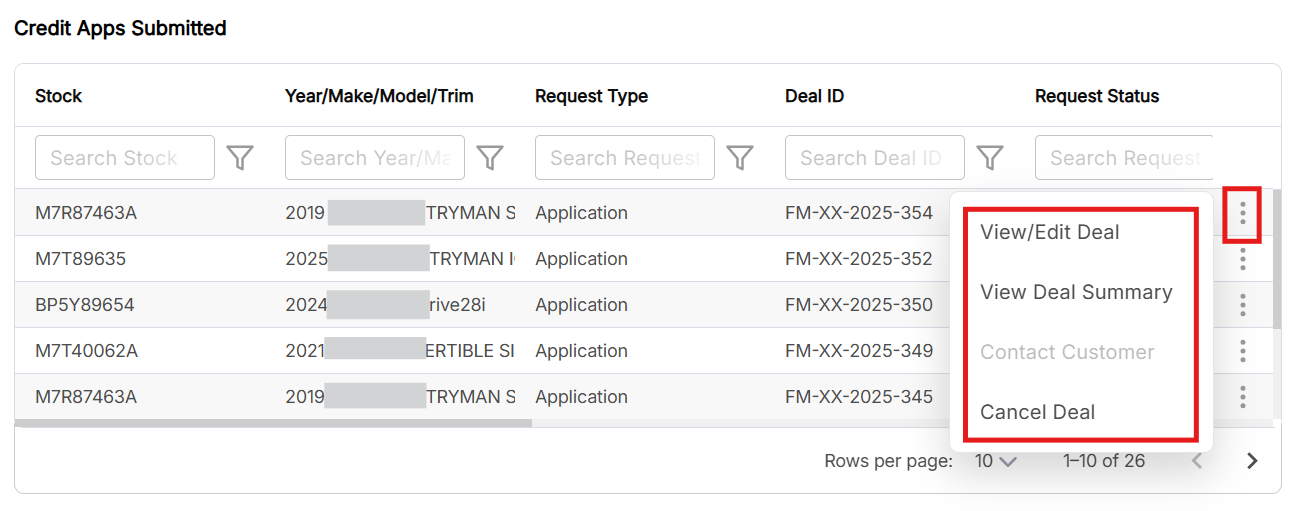
To View/Edit Deal, View Deal Summary, Contact Customer, and Cancel Deal, click the icon and select the desired option:
Deals
View all deal in the Deals table:
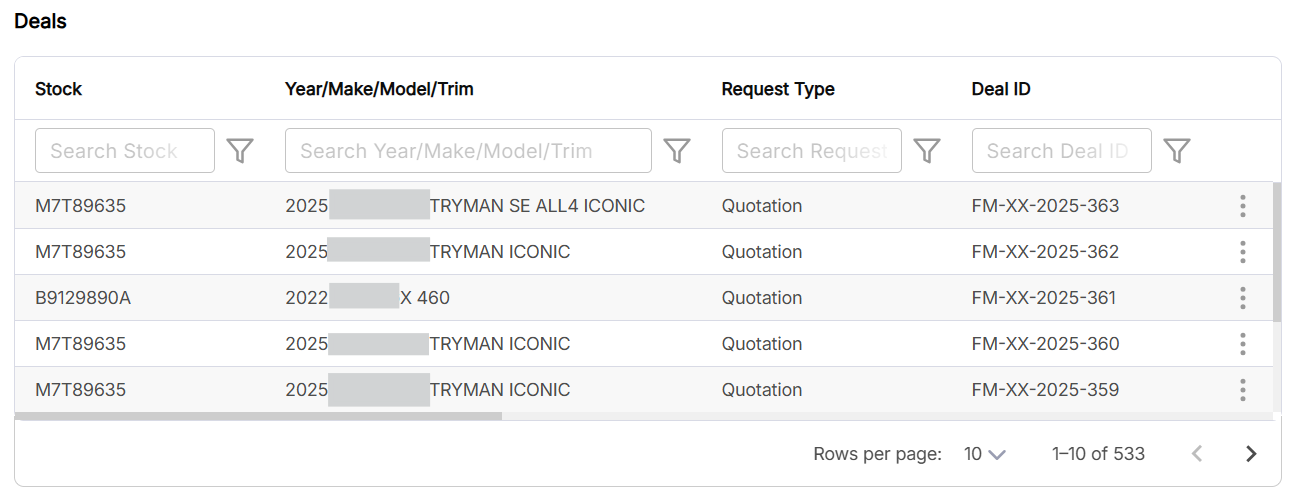
The Deals table consists of the following fields for each deal:
- Stock: The stock number of the asset.
- Year/Make/Model/Trim: Year, make, model, and trim of the asset.
- Request Type: The request type, application or quotation.
- Deal ID: The ID of the deal.
- Request Status: The status of the request such as Submitted, Awaiting More, Fully Received.
- VIN: The VIN number of the asset.
- First Name: The first name of the customer.
- Last Name: The last name of the customer.
- Deal Type: The type of deal, lease or finance.
- Financed Amount: The amount which is financed.
- Program: The dealer/lender program.
- Creation Date: The date on which the deal was created.
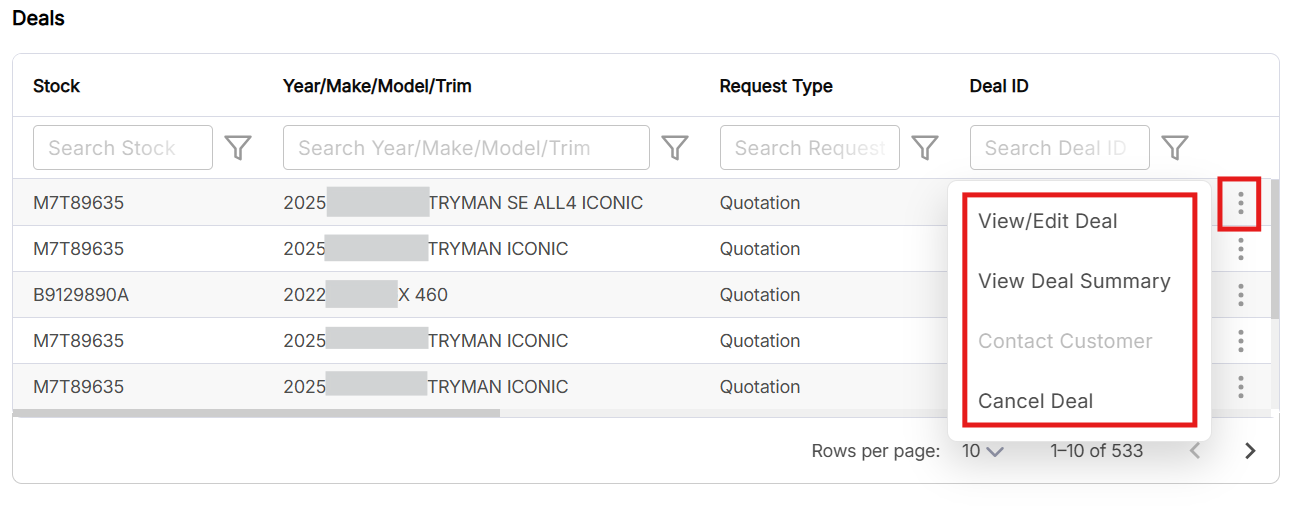
To View/Edit Deal, View Deal Summary, Contact Customer, and Cancel Deal, click the icon and select the desired option:
Deals Without F&I Products
View all deal without F&I products in the Deals Without F&I Products table:
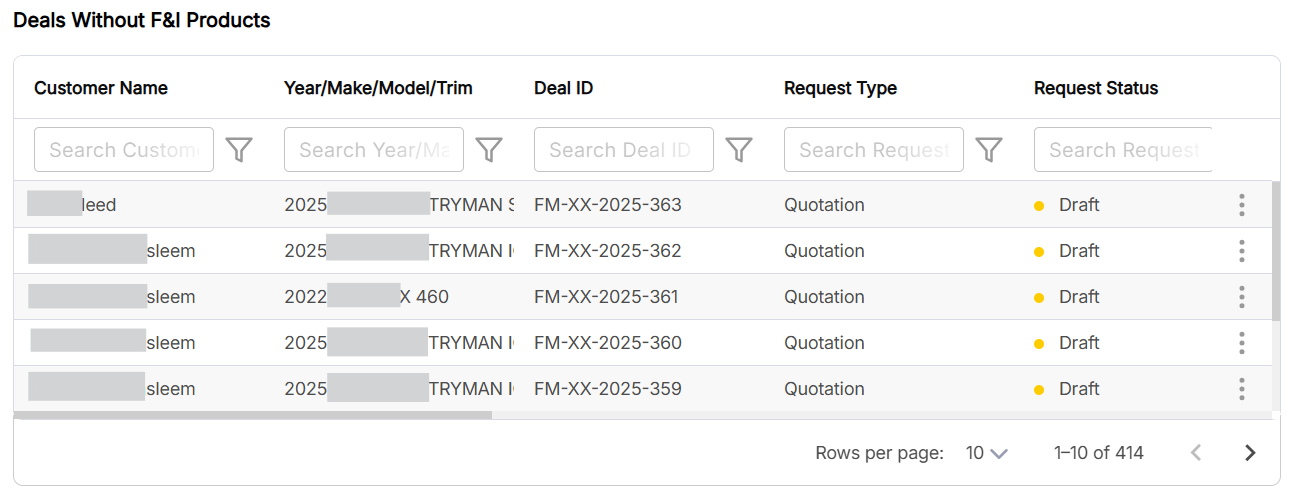
The Deals Without F&I Products table consists of the following fields for each deal:
- Customer Name: Name of the customer.
- Year/Make/Model/Trim: Year, make, model, and trim of the asset.
- Deal ID: The ID of the deal.
- Request Type: The request type, application or quotation.
- Request Status: The status of the request such as Submitted, Awaiting More, Fully Received.
- VIN: The VIN number of the asset.
- Stock: The stock number of the asset.
- Customer Type: The type of customer.
- Finance Type: The type of finance.
- Finance Amount: The amount which is financed.
- Program: The dealer/lender program.
- Creation Date: The date on which the deal was created.
- Expiry Date: The date on which the deal expired.
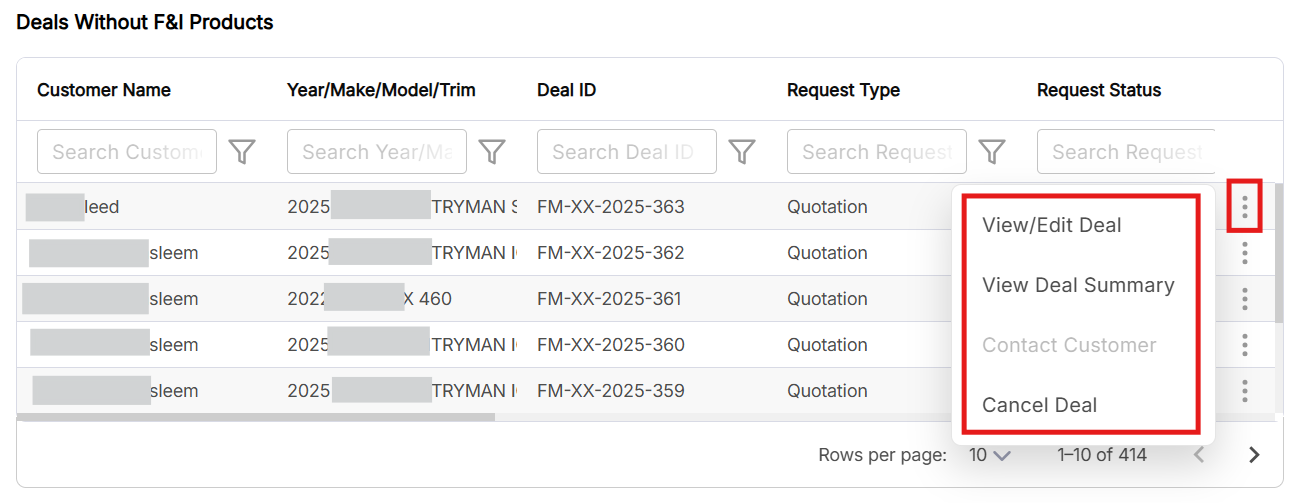
To View/Edit Deal, View Deal Summary, Contact Customer, and Cancel Deal, click the icon and select the desired option:
F&I Products Added
View all deal with F&I products in the F&I Products Added table:
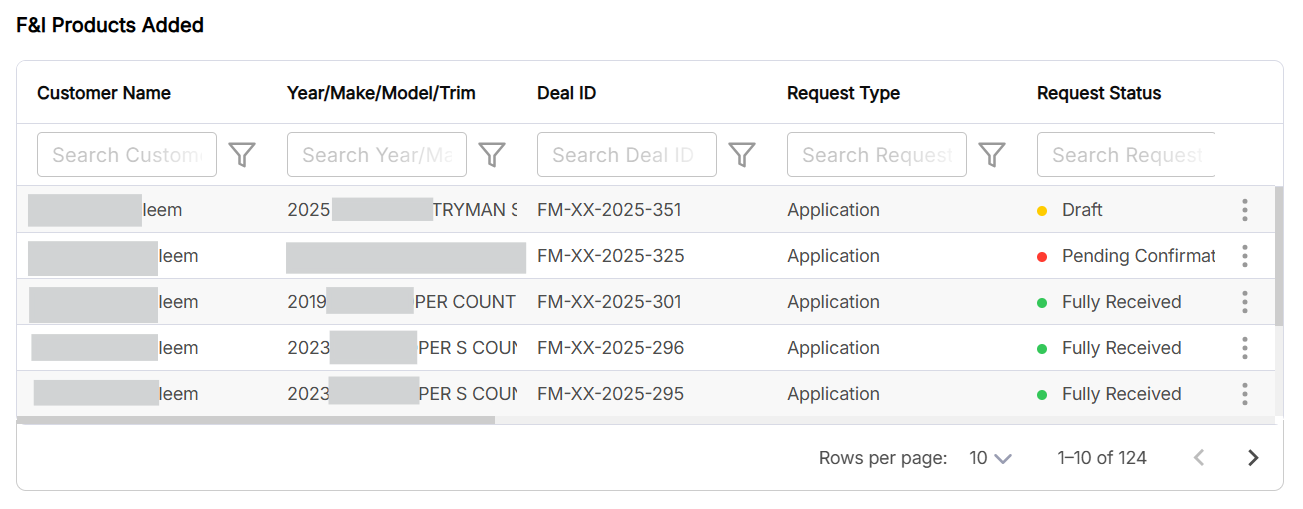
The F&I Products Added table consists of the following fields for each deal:
- Customer Name: Name of the customer.
- Year/Make/Model/Trim: Year, make, model, and trim of the asset.
- Deal ID: The ID of the deal.
- Request Type: The request type, application or quotation.
- Request Status: The status of the request such as Submitted, Awaiting More, Fully Received.
- VIN: The VIN number of the asset.
- Stock: The stock number of the asset.
- Customer Type: The type of customer.
- Finance Type: The type of finance.
- Finance Amount: The amount which is financed.
- Program: The dealer/lender program.
- Creation Date: The date on which the deal was created.
- Expiry Date: The date on which the deal expired.
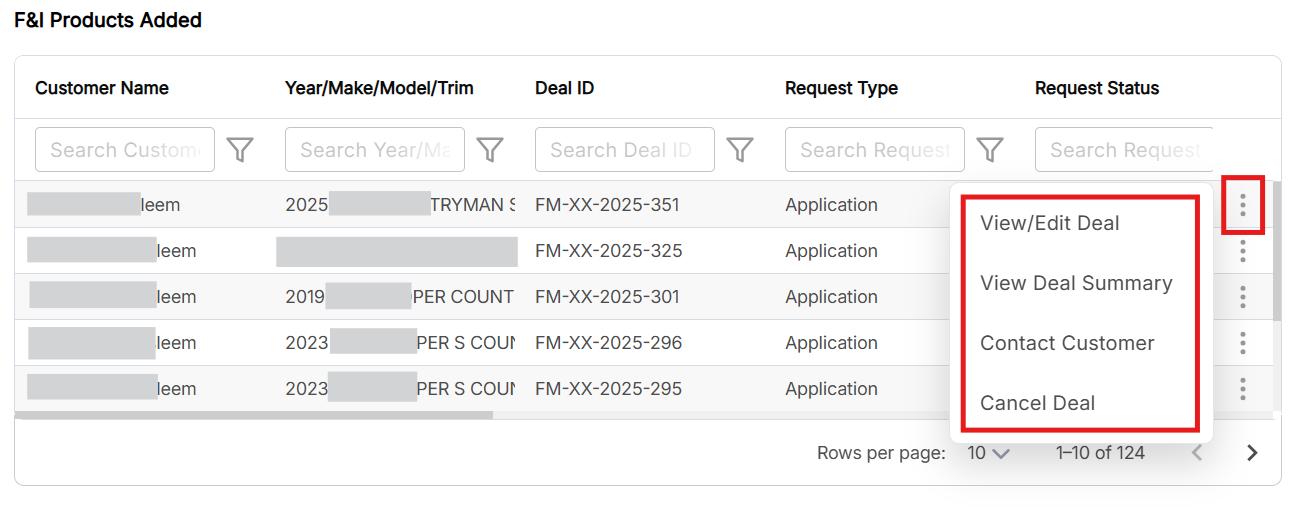
To View/Edit Deal, View Deal Summary, Contact Customer, and Cancel Deal, click the icon and select the desired option:
Trade-Ins
View all deal with trade-ins in the Trade-Ins table:
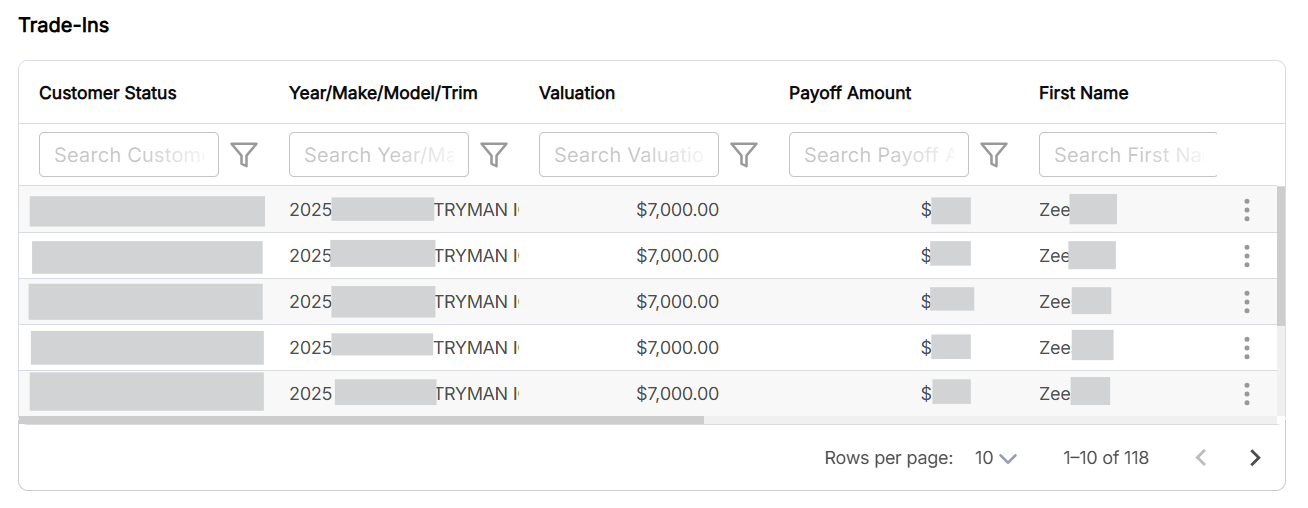
The Trade-Ins table consists of the following fields for each deal:
- Customer Status: The status of the customer, currently online or offline.
- Year/Make/Model/Trim: Year, make, model, and trim of the asset.
- Valuation: The amount for which the trade-in is valued.
- Payoff Amount: The payoff amount.
- First Name: The first name of the customer.
- Last Name: The last name of the customer.
- Deal ID: The ID of the deal.
- VIN: The VIN number of the asset.
- Status: The status of trade-in such as Draft, Pending Confirmation, Fully Received.
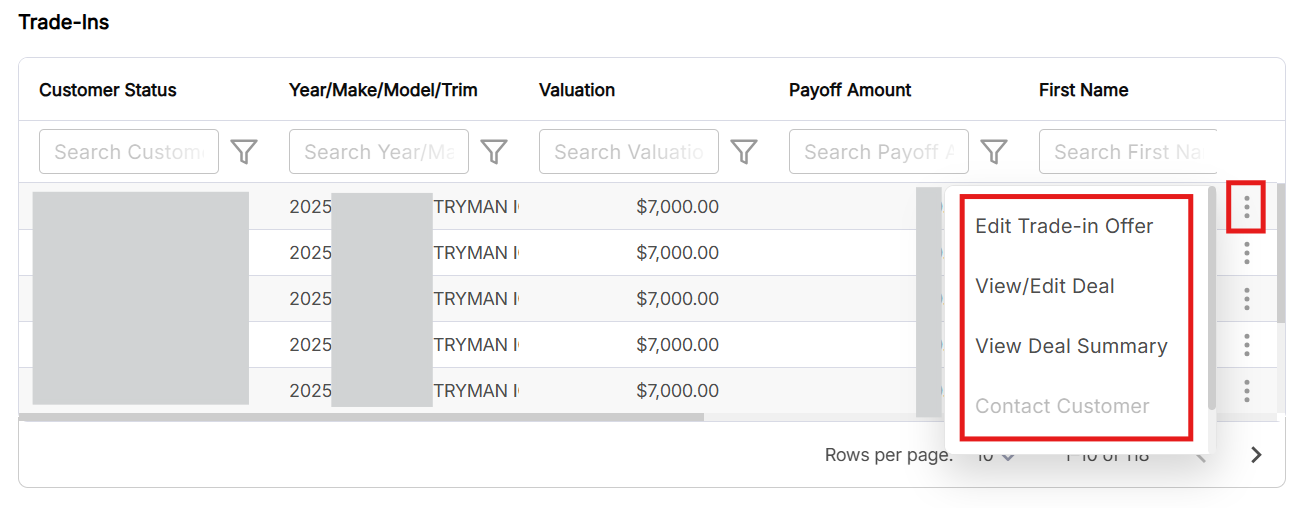
To Edit Trade-in Offer, View/Edit Deal, View Deal Summary, and Contact Customer, click the icon and select the desired option:
Vehicle Reserved
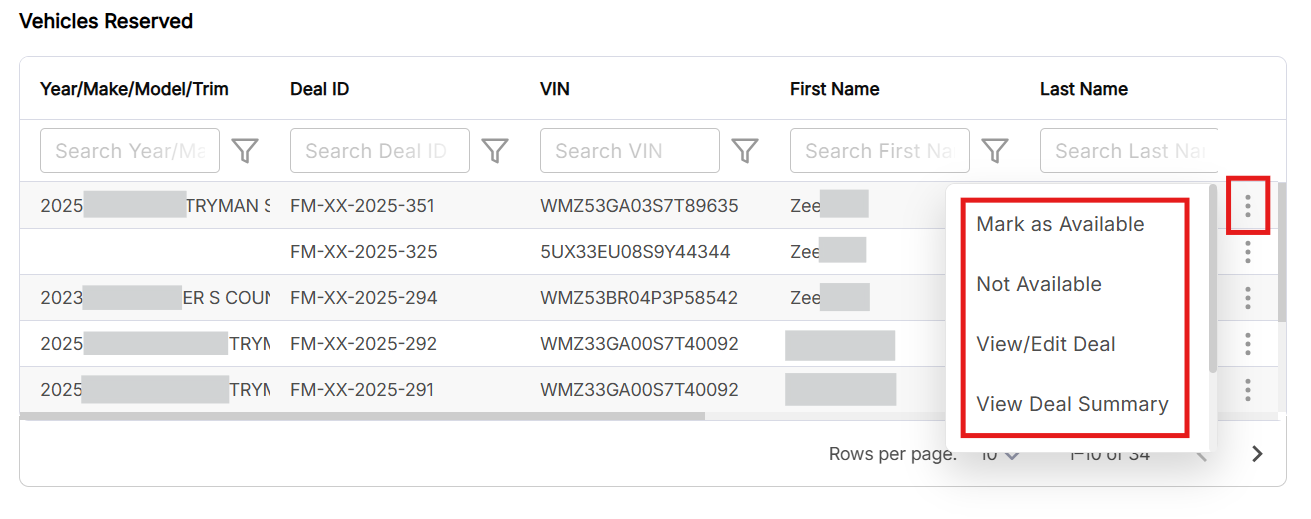
View all deal with vehicle reservation request in the Vehicle Reserved table:
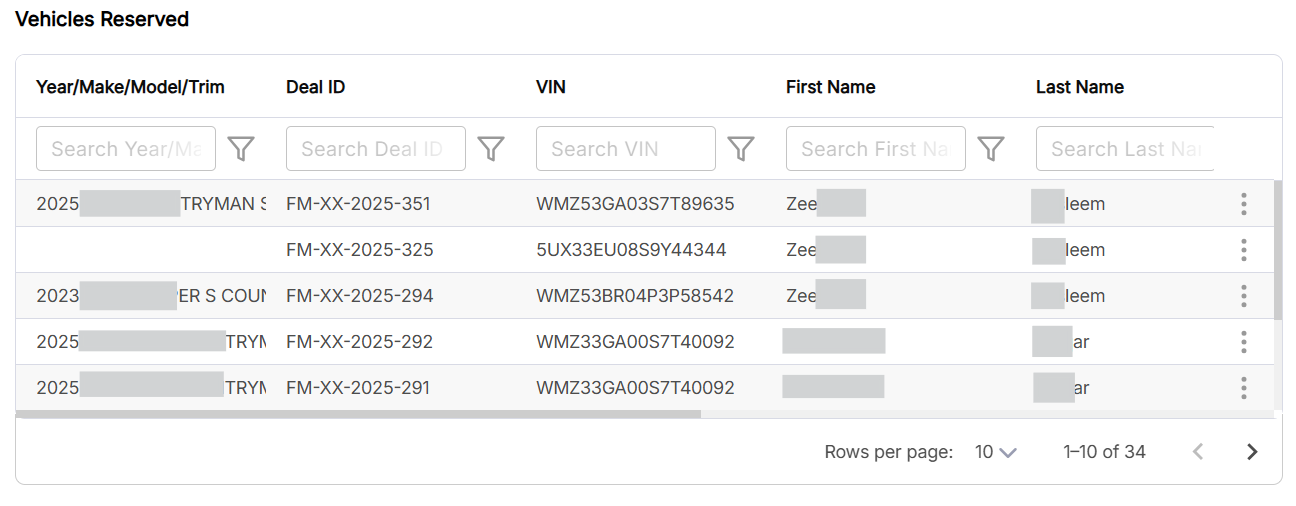
The Vehicle Reserved consists of the following fields for each deal:
- Year/Make/Model/Trim: Year, make, model, and trim of the asset.
- Deal ID: The ID of the deal.
- VIN* VIN: The VIN number of the asset.
- First Name: The first name of the customer.
- Last Name: The last name of the customer.
- Deal Type: The type of deal, lease or finance.
- Finance Amount: The amount which is financed.
- Program: The dealer/lender program.
- Creation Date: The date on which the deal was created.
To mark the an asset as available or unavailable, view deal summary, contact customer, cancel deal, or to view/edit deal, click the icon and select the desired option: