Credit Application
The Credit Application screen is the primary workspace for reviewing/evaluating an Individual Credit Application, Corp Application, and Third Party Responses. It consolidates applicant information, asset details, risk assessment, business rules, finance structure, supporting documents, and AI-powered insights into a single view, enabling credit analysts to make informed and compliant lending decisions.
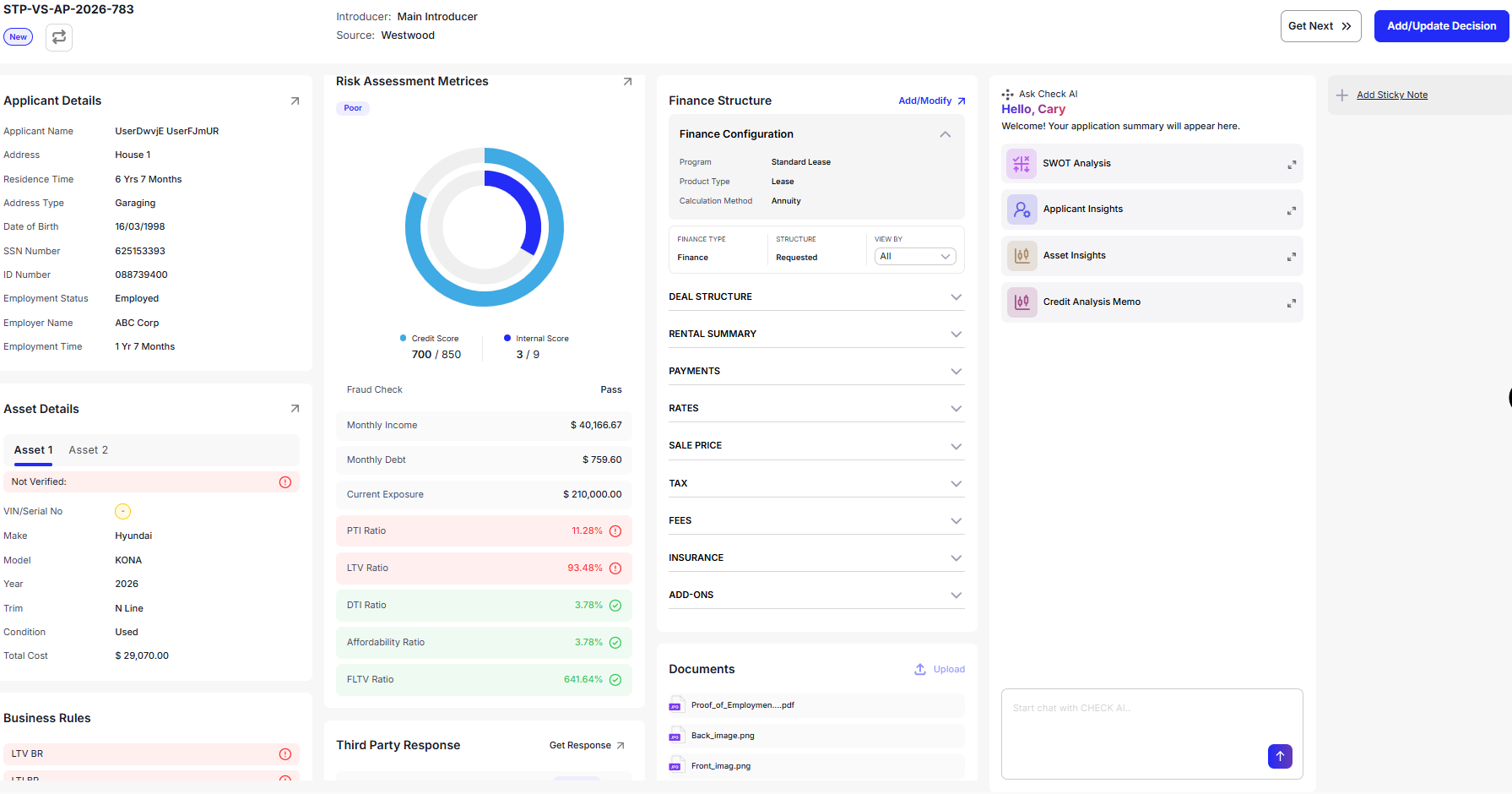
The following information is displayed in the upper section of the screen:
-
Application ID is displayed in the top-left corner for uniquely identifying the credit application.
-
Resubmit is displayed for resubmitted applications. Click the button to see resubmitted summary.
-
Duplicate is displayed for applications that are duplicated. Click View Duplicated to see the duplicated of the application.
-
Introducer and Source are displayed in the upper section to identify the origin of the application.
-
The upper-right corner also provides quick access to:
- Discrepancy indicator to notify users of any detected discrepancies.
- Get Next to open the next credit application in the queue.
- Add/Update Decision to record or modify the credit decision.
Review any application discrepancies before proceeding with the credit decision.
Sections on Window
Applicant Details
The Applicant Details section displays information about the applicant required for funding assessment. The information presented varies based on the customer type, such as an individual, corporate, or other supported applicant categories, and may include personal, business, identification, contact, employment, or financial details relevant to the selected applicant.
Asset Details
The Asset Details section provides information about the asset being financed, including VIN/Serial Number, make, model, year, trim type, condition, and total cost.
Business Rules
The Business Rules section displays failed business rules to the current application. Users can review triggered rules and, where permitted, waive individual rules before making a credit decision.
Risk Assessment Metrics
The Risk Assessment Metrics section provides key indicators used to evaluate the applicant’s creditworthiness. Information displayed includes:
- Risk Rating
- Credit Score
- Internal Score
- Fraud Check Status
- Monthly Income
- Monthly Debt
- Current Exposure
- Financial Ratios based on the customer type
You can view further breakdown of Risk Assessment Metrics of Primary and Co-applicant by clicking the arrow icon on the top-right corner of the Risk Assessment Card.
Third Party Response
The Third Party Response section retrieves information from integrated external services. Click Get Response to obtain responses for:
- ID Verification
- KYC Report
- Credit Response
- Fraud Check
To view the responses, click the arrow icon against the desired field in the Third Party Responses section.
ID Verification Response
The ID Verification response pop-up window includes the following details:
- Verification by: Name of the third party that provided the response.
- License Details: License details including status, first and last name, license number, issue state, issuance and expiry date, and DOB.
- License Images: Images of the license (front and back).
- Analysis Breakdown: Includes Consistency Analysis, Forensic Analysis, Content Analysis, Format Analysis, Front & Back Analysis, MRZ Analysis, and Client Validation.
Credit Response
The Credit Response response pop-up window includes the following details:
- Credit Report Document
- Trade Debt Chart
Fraud Check
The Fraud Check response pop-up window includes the following details:
- Decision: Displays the overall fraud assessment result based on all risk checks performed.
- Name Address Correlation Risk: Indicates the level of risk associated with the relationship between the applicant’s name and address.
- Name Email Correlation Risk: Indicates the level of risk based on how well the applicant’s name matches the provided email address.
- Fraud: Shows the overall fraud risk identified from fraud detection checks.
- KYC: Displays the outcome of Know Your Customer (KYC) identity verification checks.
- Address Risk: Indicates the risk associated with the applicant’s provided address.
- Email Risk: Indicates the risk level associated with the provided email address.
- Phone Risk: Indicates the risk associated with the applicant’s phone number.
- Alert Risk: Displays any risk identified from triggered fraud alerts or suspicious indicators.
- Global Watch List: Indicates whether the applicant matches any global sanctions, watchlists, or regulatory monitoring lists.
- Synthetic: Indicates the likelihood that the identity may be synthetic or artificially created.
- Device Risk: Indicates the level of fraud risk associated with the device used during the application or transaction.
Finance Structure
The Finance Structure section enables users to add or modify the financial structure of the application by clicking Add/Modify.
Financial Configuration
Configure the financial parameters for the application. Financial Configuration displays the configured financial parameters for the application including Program, Product Type, Calculation Method, and Finance Type.
You can also view the configurations using View By option (Asset 2, Asset 2, or All asset)
Deal Structure
Displays and allows modification of the complete financing structure, including sale price, financed amount, repayment terms, interest information, balloon details, commission, dealer reserve, and dealer participation.
Rental Summary
Displays calculated rental information for both Auto and Balloon rentals.
Payments
Displays calculated payment information, including principal, term charges, taxes, services, receivables, and total payment amounts.
Rates
Displays calculated financial rates, including Gross Yield, Net Yield, APR, Flat Rate Commission Inclusive, and Flat Rate Commission Exclusive.
Sale Price
Displays the financial breakdown of the asset price, including trade-in values, rebates, tax information, down payments, and asset subtotal.
Tax
Displays applicable tax components, such as VAT, along with their configured treatment.
Fees
Displays all configured fees applicable to the finance structure.
Add-Ons
Displays all configured add-ons associated with the application.
Documents
The Documents section allows users to upload and manage documents required for credit evaluation and compliance.
Ask Check AI (Ask me!)
The Ask Check AI section provides AI-powered insights and recommendations to assist with credit decisioning. Users can communicate with Check AI using natural language to obtain analytical reports, recommendations, and financing insights.
Credit Worthiness
Displays the AI-generated creditworthiness percentage for the applicant.
SWOT Analysis
Generates a SWOT analysis highlighting the applicant’s strengths, weaknesses, opportunities, and threats.
Applicant Insights
Click Show Report to view a comprehensive applicant assessment, including financial profile, credit profile, employment outlook, fraud verification, lending suitability, recommendations, and final assessment.
Asset Insights
Provides an AI-generated analysis of the financed asset, including valuation, ownership costs, market trends, risk indicators, environmental metrics, and recommendations.
Credit Analysis Memo
Generates a comprehensive credit memorandum summarizing the applicant profile, financial capacity, collateral, market risks, approval conditions, recommendations, and supporting documentation.
Stipulations Suggestion
Provides AI-generated financial and non-financial stipulation recommendations. Users can create stipulations directly from the suggested recommendations where required.
Credit Analytics
Displays graphical analytics to assist in evaluating the overall credit profile.
Recommended Finance Structure
Displays an AI-recommended finance structure based on the applicant’s financial profile and risk assessment.
Chat Box
The integrated chat interface enables users to communicate directly with Check AI. Conversation history is retained for future reference.
AI-generated insights are intended to assist analysts during credit evaluation. Final lending decisions should always be reviewed in accordance with organizational policies.
Add Sticky Notes
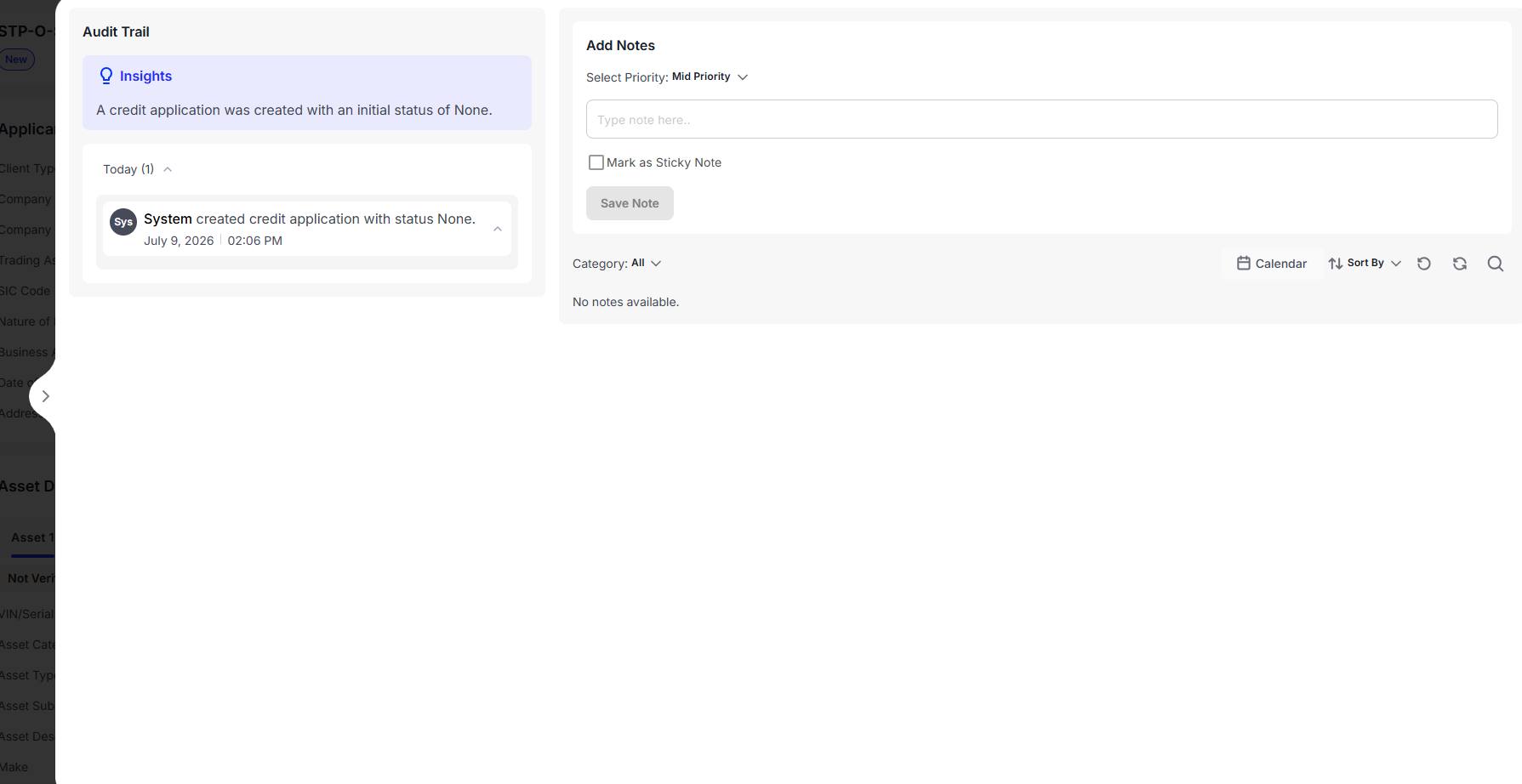
Use this section to record internal notes related to the application for future reference and collaboration.
Audit Trail
The Audit Trail is accessible from the right-hand side of the screen and displays a chronological history of activities performed on the credit application, including user actions, status changes, and timestamps.
Add/Update Decision
The Add/Update Decision window enables users to record or modify the credit decision. It contains two tabs.
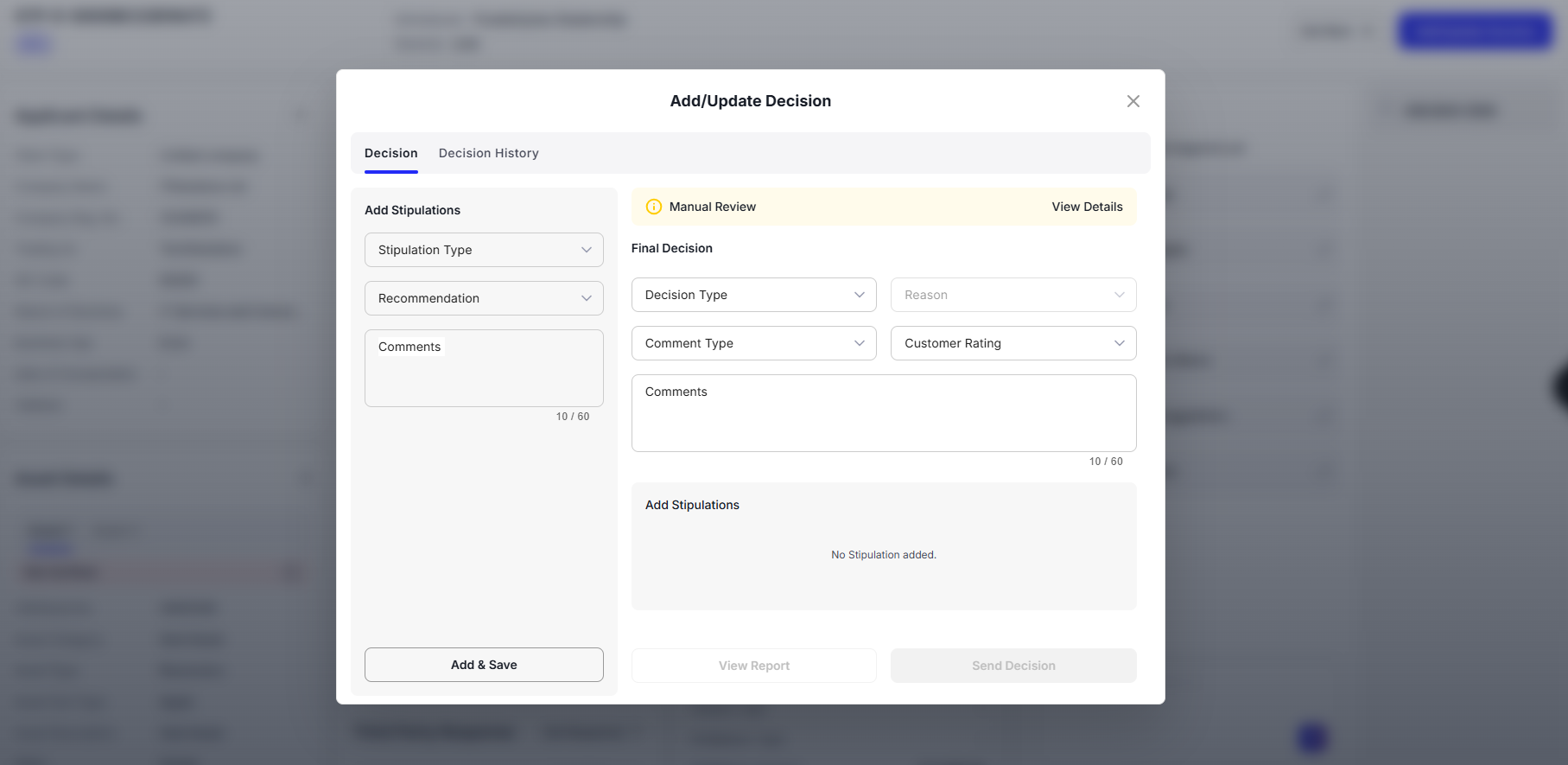
Decision tab
Use the Decision tab to record stipulations and finalize the application decision.
Add Stipulations
Users can add financial or non-financial stipulations by selecting the appropriate stipulation type, choosing a configured stipulation, and entering comments if required.
Final Decision
Record the final outcome by selecting the decision type, providing a decline reason when applicable, selecting the appropriate comment type, assigning a customer rating, and saving or sending the decision.
Ensure all required reviews, supporting documents, and stipulations have been completed before sending the final decision.
Decision History tab
The Decision History tab displays a complete history of all decisions recorded for the application, allowing users to review previous decision outcomes, comments, and updates.