Dealer Guide
The Dealer Guide section provides a dedicated and structured walkthrough of all dealership-specific features available within the Link platform. It is designed to assist dealer users in understanding and performing their operational tasks efficiently, covering every stage from onboarding to managing quotations, proposals, and communication workflows. This guide ensures that dealership teams have clear, step-by-step instructions to navigate system functionalities, maintain accurate records, and collaborate seamlessly with brokers through the platform.
Dealership Onboarding
To onboard a new dealership in the Link platform, log in using the Broker Admin account. From the left navigation menu, go to Admin Options → Setups.
The Index Window will open. Then, navigate to Dealer Management from the left menu. The Dealer Management screen allows broker administrators to add, view, and manage dealerships associated with a lender. Each dealership record displays essential details such as Dealer Name, Code, First/Last Name, Email Address, and Status for efficient tracking and updates.
For Dealer Onboarding See more
Dealership Users Onboarding
After the dealership is successfully onboarded, the Dealer Admin User can create additional dealer users as needed. To do this, log in to the Link platform using the Dealer Admin account. From the left menu, navigate to User Management.
For Dealership Users Onboarding See more
Dealership Inventory Management
For Dealership Inventory Management in the Link platform, log in using the Dealer Admin account. From the left navigation menu, go to Admin Options → Setups.
The Index Window will open. Then, navigate to Inventory Management from the left menu.
For Dealership Inventory Management See more
Quotation Creation and Comparison
For Quotation Creation and Comparison in the Link platform, log in Link. From the left navigation menu, go to Proposal and Quotation → Create New Quotation.
For Quotation Creation and Comparison See more
Inventory Selection
To choose asset from inventory, in the Link platform, log in Link. From the left navigation menu, go to Proposal and Quotation → Create New Quotation, and click the Choose Asset From Inventory in the header section.
For Inventory Selection See more
Proposal Creation
For Proposal Creation in the Link platform, log in Link. From the left navigation menu, go to Proposal and Quotation → Create New Proposal.
For Proposal Creation See more
Submission of Proposals to the Corresponding Broker
For Submission of Proposals to the Corresponding Broker in the Link platform, log in Link. From the left navigation menu, go to Proposal and Quotation → Create New Proposal.
For Submission of Proposals to the Corresponding Broker See more
Chat Widget
The Chat Widget provides a seamless communication channel between the Dealership and the Broker within the Link platform. After logging into Link, the chat icon is displayed at the bottom-right corner of the screen, ensuring quick and convenient access at any time.
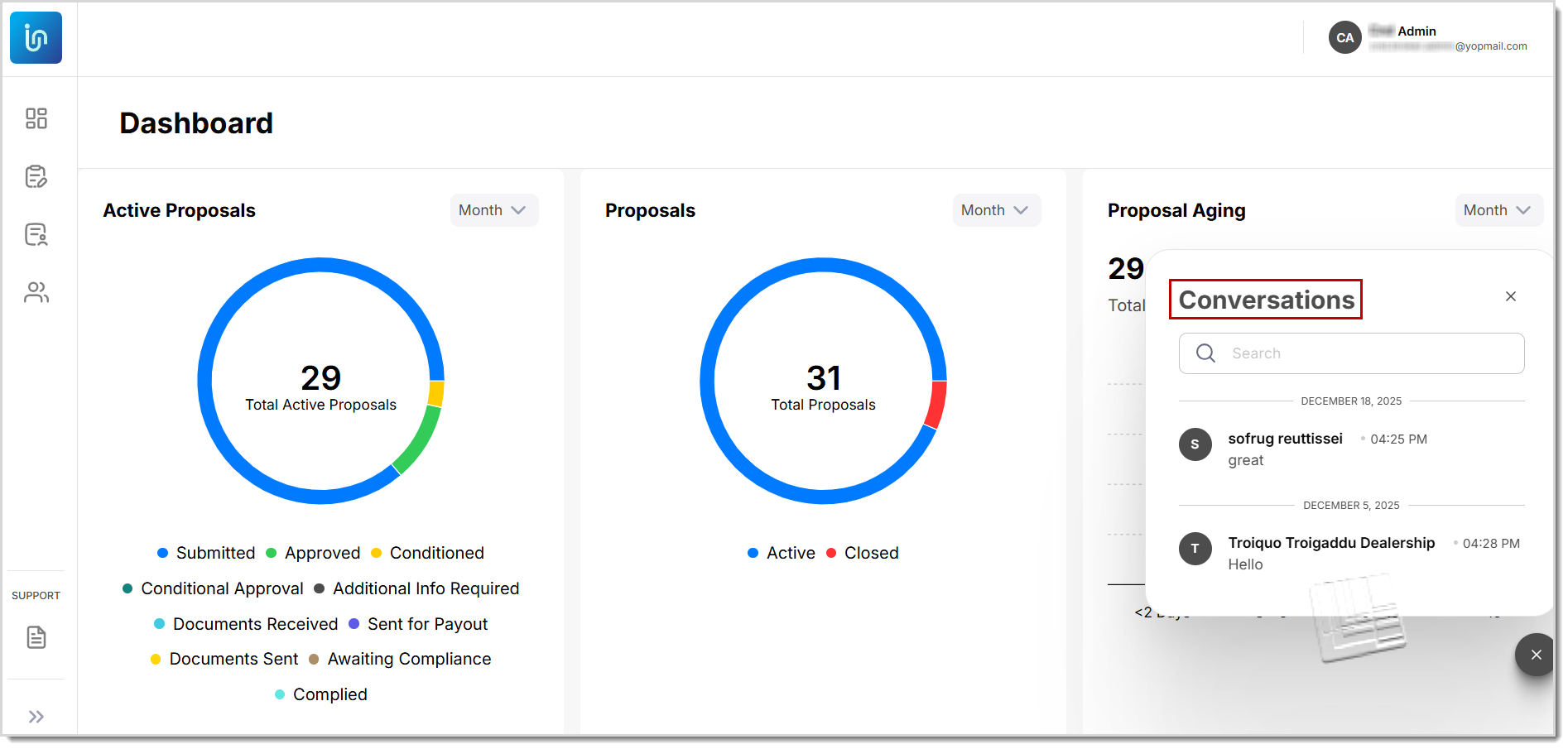
Chat Widget
When the widget is opened, users can view the complete history of previous conversations, each displayed as a separate chat thread for easy reference. To begin communication, users may:
- Click the text field to start a new chat, or
- Select any existing chat thread to continue the previous conversation.
This feature enables users to maintain clear, organized, and continuous discussions directly within the platform, supporting real-time collaboration and efficient handling of dealership-broker interactions.
Workqueue Details for Quotations and Proposals
For Workqueue Details in the Link platform, log in Link. From the left navigation menu, go to Proposal and Quotation → Workqueue.
For Workqueue See more
Quote Acceptance and DocuSign
For Quote Acceptance and DocuSign in the Link platfrom, See more